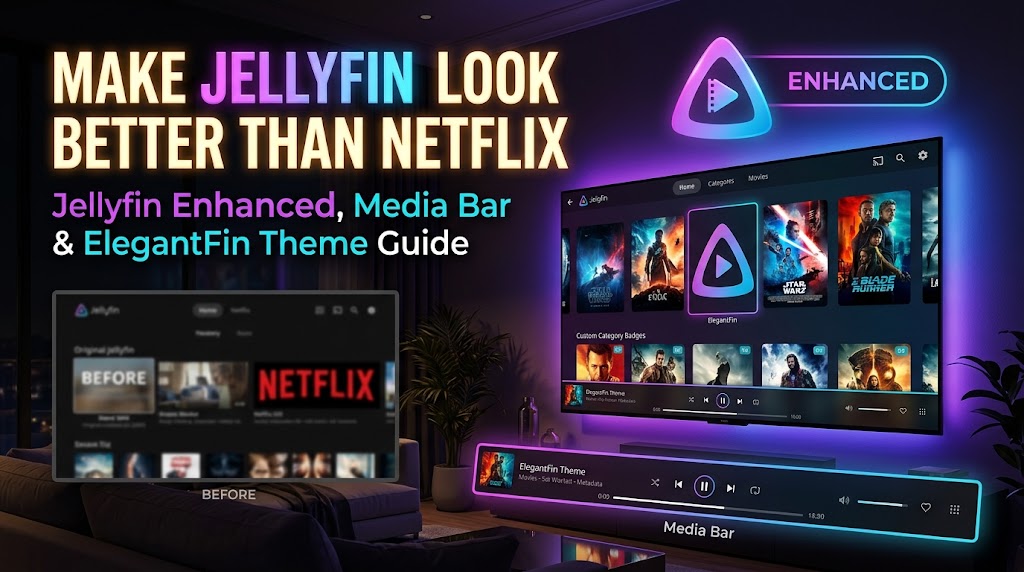
Make Jellyfin Look Better Than Netflix: Jellyfin Enhanced, Media Bar & ElegantFin Theme Guide
On this page(10 sections)
Jellyfin is the best free media server you can run. But let's be honest: out of the box it looks a bit… 2018. Flat grey cards, a plain home screen, and none of the polish your family is used to from Netflix or Disney+.
Three community projects fix that in about 20 minutes:
- Jellyfin Enhanced: a plugin that adds quality badges, ratings, a pause screen, keyboard shortcuts, spoiler protection and one-click Seerr requests from inside Jellyfin.
- Media Bar: a big, animated featured banner with trailers across the top of the home screen.
- ElegantFin: a clean, modern CSS theme that makes everything feel premium.
This guide installs all three, shows how to make them work together, and covers which apps get the upgrades, how to roll back, and what to do when a Jellyfin update breaks something.
Before You Start
- Jellyfin 10.11 or newer. Jellyfin Enhanced requires 10.11+ (12.x is supported too), and Media Bar Enhanced targets 10.11.
- Admin access to the Jellyfin Dashboard.
- A backup. Copy your Jellyfin
configfolder, or at least note your current Custom CSS, before changing anything. - Docker users: make sure your Jellyfin
configvolume is writable. Some plugins modify the web UI, and read-only setups cause errors (more on that below).
Don't have Jellyfin running yet? Start with our Ultimate 2026 Media Stack guide. Still deciding? Read Plex vs Jellyfin first.
How Plugins and Themes Differ
| Plugins (Jellyfin Enhanced, Media Bar) | Themes (ElegantFin) | |
|---|---|---|
| Install from | Dashboard → Plugins → Catalog | Dashboard → Branding → Custom CSS |
| Adds features? | ✅ Yes, new buttons, pages and behaviour | ❌ Looks only |
| Needs a restart? | ✅ Yes | ❌ No, just refresh |
| Undo | Uninstall the plugin and restart | Delete the CSS line |
Part 1: Install Jellyfin Enhanced
Jellyfin Enhanced (by n00bcodr) is the single biggest quality-of-life upgrade you can give Jellyfin.
Install steps
- Go to Dashboard → Plugins → Repositories and click ➕.
- Name it
Jellyfin Enhancedand paste this URL:https://raw.githubusercontent.com/n00bcodr/jellyfin-plugins/main/manifest.json - Save, open the Catalog tab, find Jellyfin Enhanced, and click Install.
- Restart Jellyfin (Dashboard → Restart, or
docker restart jellyfin). - Hard-refresh your browser with Ctrl+F5 (Cmd+Shift+R on Mac).
- Press ? anywhere in Jellyfin. If the Enhanced panel opens, it's working. 🎉
The best features to turn on
Admin settings live in Dashboard → Plugins → Jellyfin Enhanced. Each user can also tweak their own preferences from the ? panel.
🏷️ Poster badges Small tags on every poster showing resolution, HDR / Dolby Vision, Atmos / DTS:X, audio language flags, age rating and scores. Your family can finally tell the 4K HDR copy from the 1080p one at a glance.
⭐ Richer detail pages Ratings from TMDB and Rotten Tomatoes (plus IMDb, Letterboxd, Metacritic and more with a free MDBList key), reviews, and "Elsewhere": which streaming services carry the title in your country. Streaming availability and reviews need a free TMDB API key.
⏸️ Pause screen and player upgrades A cinematic pause screen with the title and plot, bookmarks, auto-skip intros and outros (with the Intro Skipper plugin), custom subtitle styling, and press-and-hold for 2× speed.
🫣 Spoiler Guard Hides thumbnails, titles and plots for episodes you haven't watched yet. It runs server-side, so it works on every Jellyfin app, including TV apps.
⌨️ Keyboard shortcuts
| Key | Action | Key (in player) | Action |
|---|---|---|---|
/ | Search | O | Skip intro/outro |
Shift+H | Home | B | Add bookmark |
R | Play something random | S / C | Subtitle menu / next subtitle |
D | Dashboard | V | Next audio track |
? | Open Enhanced panel | 0–9 | Jump to 0–90% |
You can remap any shortcut from the ? panel.
Connect Seerr: request from inside Jellyfin
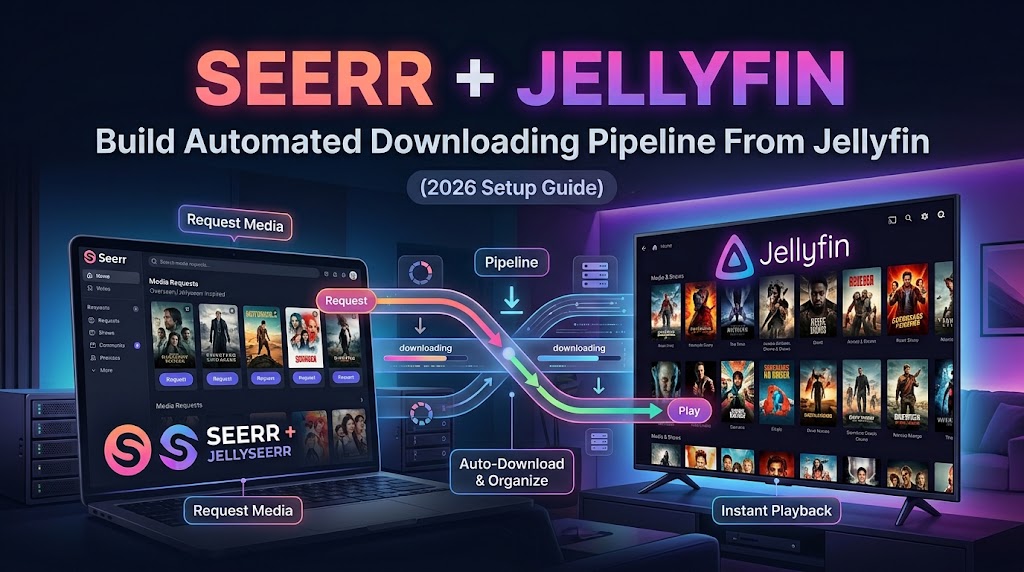
This is the killer feature. Connect your Seerr server in the plugin settings (server URL plus API key, found in Seerr under Settings → General). When someone searches Jellyfin for a title you don't have, it appears below the results with a Request button. They never leave Jellyfin.
You also get recommendation rows with request buttons, browsing by genre, studio or actor, automatic next-season requests, and watchlist sync. Connect Sonarr and Radarr too, and you get an upcoming releases calendar and a requests page with download progress.
New to Seerr? Our Seerr + Jellyfin setup guide gets it running in 15 minutes.
Part 2: Add the Media Bar (Featured Banner)
The Media Bar adds a large, rotating featured content banner to the top of the home screen, with backdrops, logos, ratings, a plot snippet and a big Play button. It's the single change that makes Jellyfin feel like a streaming service.
The original Media Bar was created by MakD. The actively developed plugin version today is Media Bar Enhanced (by CodeDevMLH), a fork of MakD's work that adds trailers, personalized picks and much more.
Install steps
- Dashboard → Plugins → Repositories → ➕ and add:
https://raw.githubusercontent.com/CodeDevMLH/jellyfin-plugin-manifest/refs/heads/main/manifest.json - Catalog → install Media Bar Enhanced (listed under General).
- Restart Jellyfin, then Ctrl+F5 in your browser.
Recommended: install File Transformation too
Plugins like Media Bar need to inject code into Jellyfin's web page. With Docker, that often fails with permission errors because the web files aren't writable. The File Transformation plugin (by IAmParadox27) solves this by injecting changes in memory instead of editing files on disk. Media Bar Enhanced detects it automatically.
Add the IAmParadox27 plugin repository (from the File Transformation GitHub page), install File Transformation, and restart. It's also required if you later add the Plugin Pages or Custom Tabs plugins, which can put Jellyfin Enhanced's calendar and requests pages in the sidebar.
Settings worth changing
Configure it under Dashboard → Plugins → Media Bar Enhanced:
- Video backdrops: play trailers (YouTube or local trailer files) in the banner. Turn on Start muted, or your family will hate you.
- Personalized recommendations: feature titles based on each user's watch history.
- Per-library control: keep kids' or home-video libraries out of the banner.
- Parental rating limit and excluded genres: avoid horror trailers autoplaying on the kids' profile.
- Item limit and recency filter: for example, "the 15 most recently added titles from the last 60 days."
- Seasonal mode and custom collections: feature a Christmas or Halloween collection automatically.
Part 3: Apply the ElegantFin Theme
ElegantFin (by lscambo13) is a polished dark theme with smoother cards, better spacing, a modern login screen and lots of small refinements. It's pure CSS, so there's no plugin and no restart.
Install steps (server-wide, for all users)
- Go to Dashboard → Branding (on Jellyfin 10.11+; older versions have it under General).
- In Custom CSS, paste:
@import url("https://cdn.jsdelivr.net/gh/lscambo13/ElegantFin@main/Theme/ElegantFin-jellyfin-theme-build-latest-minified.css"); - Click Save and refresh the page.
Recommended settings
- User Settings → Display → Theme: set to Dark. ElegantFin also ships a light variant, but Jellyfin doesn't switch automatically.
- Leave the Dashboard Theme alone. ElegantFin doesn't support the separate dashboard theme setting.
- On Jellyfin 12: set User Settings → Display → Display Mode to Desktop (Legacy) on desktop or Mobile (Legacy) on phones, because the theme doesn't fully support the new layout yet.
Make ElegantFin and the Media Bar match
ElegantFin ships an add-on that styles the Media Bar to match. Add this second line directly under the first one in Custom CSS:
@import url("https://cdn.jsdelivr.net/gh/lscambo13/ElegantFin@main/Theme/ElegantFin-jellyfin-theme-build-latest-minified.css");
@import url("https://cdn.jsdelivr.net/gh/lscambo13/ElegantFin@main/Theme/assets/add-ons/media-bar-plugin-support-latest-min.css");
Order matters: CSS
@importlines must come first in the Custom CSS box, before any of your own tweaks.
ElegantFin's release notes also mention compatibility with Jellyfin Enhanced's extra links and features, so the three projects play nicely together.
Optional tweaks
ElegantFin exposes CSS variables you can set below the imports. Two popular ones:
:root {
  --resumeCardScale: 1.15;   /* bigger "Continue Watching" cards */
}
The project README lists more: app bar styles (seamless, solid, transparent), card buttons, library labels, corner radius, and an icon fix for LG webOS TVs. Community colour themes live in the project's GitHub Discussions.
Which Apps Get the Upgrades?
This is the most common source of confusion. Themes and most plugin UI changes are web-based, so they only appear in apps that render Jellyfin's web interface.
| Client | ElegantFin theme | Jellyfin Enhanced UI | Media Bar |
|---|---|---|---|
| Web browser (desktop/mobile) | ✅ | ✅ | ✅ |
| Official Android / iOS apps | ✅ | ✅ | ✅ |
| LG webOS app | ✅ (reported) | Partial | Varies |
| Android TV / Fire TV app | ❌ | Server-side features only | ❌ |
| Jellyfin Media Player (old desktop app) | ⚠️ visual bugs | Partial | Partial |
| Third-party apps (Swiftfin, Findroid, Streamyfin, Infuse) | ❌ | Server-side features only | ❌ |
"Server-side features" means things like Spoiler Guard, hidden content, automatic requests and watchlist sync. They still work everywhere because the server does the work.
Tip: if a device still shows the old look, hard-refresh the browser, or sign out and back in on mobile apps to clear the cached CSS.
Backup and Rollback
Before each change (and before each Jellyfin upgrade):
# Docker example: back up the whole Jellyfin config
docker stop jellyfin
tar czf jellyfin-config-$(date +%F).tar.gz /opt/jellyfin/config
docker start jellyfin
To roll back:
- Theme: delete the
@importlines from Custom CSS and save. Instant. - Plugin: Dashboard → Plugins → My Plugins, select the plugin, Uninstall, then restart Jellyfin.
- Can't load the web UI at all? Stop Jellyfin, move the problem plugin's folder out of
config/plugins/, and start Jellyfin again.
Troubleshooting After Jellyfin Updates
Major Jellyfin updates (like 10.10 → 10.11, or 10.11 → 12) are when things break. A safe routine:
- Check compatibility first. Look at each plugin's GitHub releases before upgrading Jellyfin. Developers usually ship updates within days.
- Update plugins from Dashboard → Plugins → My Plugins after upgrading, then restart.
- Clear caches: Ctrl+F5 in browsers; sign out and in on apps.
Common problems:
Plugin shows "Not supported" or "Malfunctioned" It doesn't match your Jellyfin version. Update it, or wait for a compatible release. Jellyfin Enhanced's repository URL serves the right build for your version automatically.
Media Bar doesn't appear (Docker)
Usually a permissions problem writing Jellyfin's index.html. Install File Transformation (Part 2) and restart.
Theme looks half-applied or broken
Make sure the @import lines are at the very top of Custom CSS. Remove old tweaks one at a time to find the conflict. On Jellyfin 12, switch to the legacy display mode.
Pressing ? does nothing Jellyfin Enhanced's script didn't load. Hard-refresh, check that the plugin is Active under My Plugins, and look at Dashboard → Logs for errors.
Everything is slow after adding trailers Turn off video backdrops for mobile, or limit trailers to specific libraries in Media Bar's settings.
FAQ
Are these plugins safe? They're popular open-source projects you can inspect on GitHub. As with any third-party plugin, install from the official repository URLs above, keep them updated, and back up before upgrading.
Will this work on my TV? The theme and visual plugin features work in web-based clients: browsers, the official mobile apps and (reportedly) LG webOS. Android TV and most third-party apps only get server-side features such as Spoiler Guard.
Do I need Seerr for Jellyfin Enhanced? No. Badges, shortcuts, the pause screen, bookmarks, Spoiler Guard and reviews all work without it. Seerr only unlocks the request and discovery features.
Can each user have a different look? Yes. Leave the server-wide Custom CSS empty and have users paste the theme into User Settings → Display → Custom CSS instead.
Does this affect performance? Barely. The CSS theme is a small file, and the plugins add a little JavaScript. Trailers in the Media Bar are the only heavy part, and they're optional.
The Bottom Line
With Jellyfin Enhanced, the Media Bar and ElegantFin, your self-hosted server stops looking like a hobby project and starts looking like a streaming service your family wants to use, with no subscription. Install them in that order, keep a backup of your config, and check plugin compatibility before every major Jellyfin upgrade.
Pair it with Seerr for one-click requests and you've built your own Netflix, minus the price hikes.