
ESP32 mmWave Presence Sensor: LD2410 + ESPHome Guide (2026)

On this page(12 sections)
Traditional PIR (Passive Infrared) motion sensors have been the go-to solution for detecting movement in smart homes for years. But they have limitations: they only detect motion, not presence. They can't tell if someone is sitting still in a room, leading to lights turning off while you're reading or working.
mmWave (millimeter wave) radar sensors solve this problem. Using radar technology similar to what's in modern smartphones, these sensors can detect both motion and static presence—knowing when someone is in a room even if they're not moving. Combined with an ESP32 microcontroller and Home Assistant, you can build a presence detection system that's more accurate and reliable than anything you can buy off the shelf.
In this guide, you'll learn:
- Wiring the LD2410 to ESP32
- ESPHome configuration and Home Assistant discovery
- Motion vs presence automations
- Fine-tuning sensitivity and troubleshooting
- Cost breakdown (~$15–20 total)
Why mmWave Over PIR?
| Aspect | PIR Sensors | mmWave (LD2410) |
|---|---|---|
| Motion detection | Yes | Yes |
| Presence detection (stationary) | No—lights turn off while you sit | Yes—knows when someone is in the room |
| False positives | Pets, sunlight, heating vents | Configurable; less prone |
| Detection range | 5–10m, limited field of view | 0.75–6m, configurable zones |
| Response time | Slow | Fast (up to 100Hz) |
| Works in darkness | No (needs IR contrast) | Yes—radar, not optical |
| Through thin materials | No | Yes (drywall, glass) |
| Distance measurement | No | Yes |
| Real-world pain | Lights off while reading, misses slow movement | Accurate occupancy; fewer false alarms |
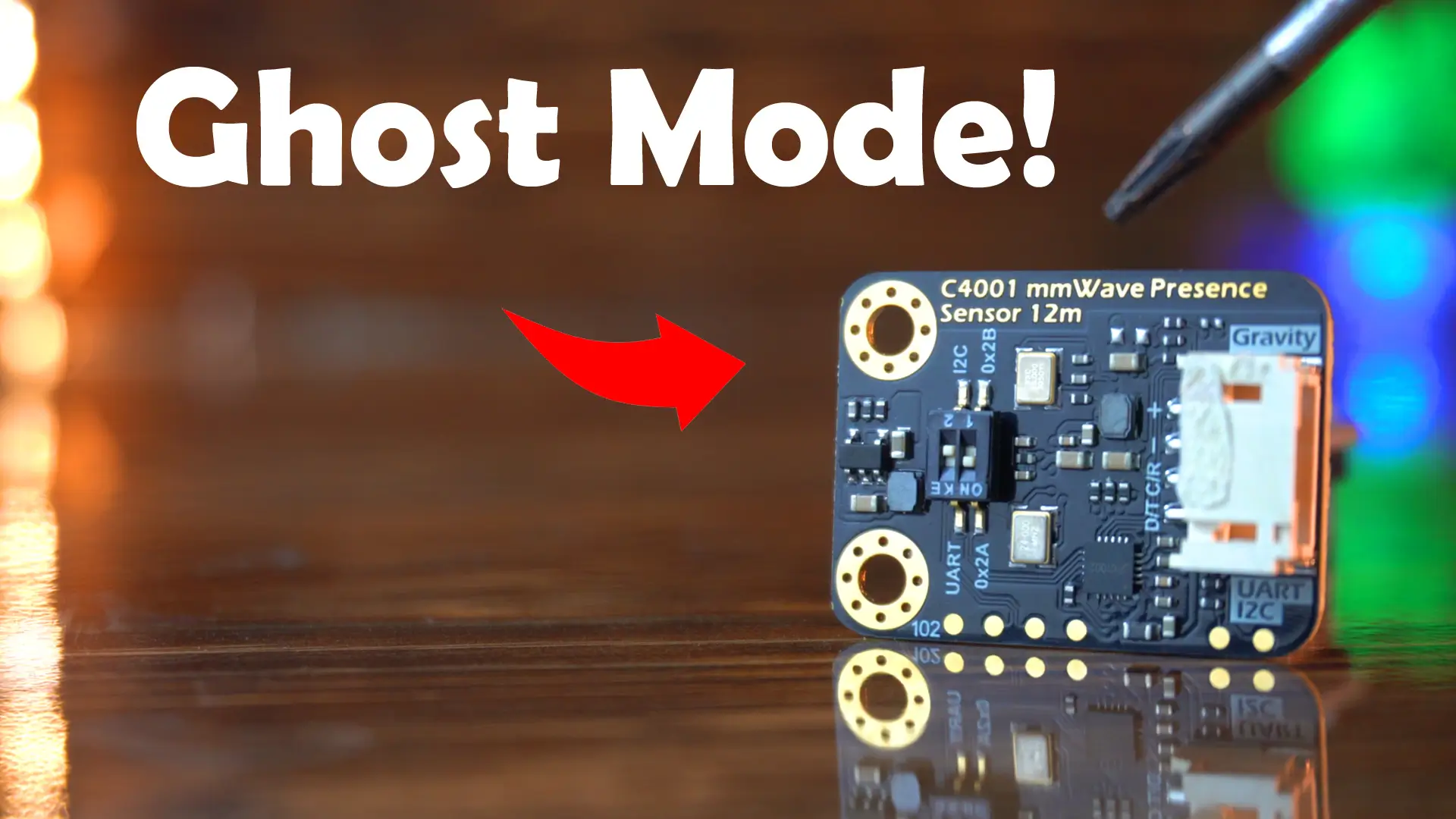
Understanding mmWave Technology
mmWave radar operates in the 24GHz or 60GHz frequency bands, using radio waves to detect objects. Unlike PIR sensors that detect heat, mmWave sensors detect the reflection of radio waves, allowing them to:
- Detect stationary objects (people sitting still)
- Measure distance to targets
- Detect movement speed and direction
- Work regardless of ambient temperature
LD2410 Sensor Overview

The HiLink LD2410 is one of the most popular mmWave sensors for DIY projects. Variants include the standard LD2410 (6m range), LD2410C (compact form factor), and LD2410B/HC (extended 8m+ range). Most tutorials use the standard LD2410; ESPHome config is similar across variants.
Specifications:
- Frequency: 24GHz
- Detection Range: 0.75m to 6m (configurable)
- Detection Types: Motion and presence
- Update Rate: Up to 100Hz
- Interface: UART (serial)
- Power: 5V, ~100mA
- Size: Compact module (~30mm × 20mm)
Features:
- Motion detection (moving targets)
- Presence detection (stationary targets)
- Distance measurement
- Configurable sensitivity zones
- Multiple target detection
Hardware Requirements
Components Needed
Essential:
- ESP32 development board (ESP32-WROOM-32 or similar)
- LD2410 mmWave sensor module
- USB cable for programming
- Jumper wires (Dupont wires)
- 5V power supply (USB power bank or wall adapter)
Optional but Recommended:
- Breadboard for prototyping
- 3D printed enclosure
- Status LED
- Resistors (for LED if used)
What Will This Cost?
| Component | Typical Cost |
|---|---|
| LD2410 mmWave module | $8–15 |
| ESP32 DevKit | $5–10 |
| Jumper wires, breadboard | $2–5 |
| 5V power supply | $3–8 (or reuse) |
| Total | ~$15–25 |
Commercial presence sensors run $50–150+. This DIY build delivers the same (or better) accuracy at a fraction of the cost.
ESP32 Board Options
ESP32-DevKitC:
- Good for prototyping
- Built-in USB-to-serial
- Easy to program
- Price: $5-10
ESP32-WROOM-32:
- Compact module
- Requires external USB adapter
- Smaller form factor
- Price: $3-8
ESP32-S3:
- More powerful
- Better for complex projects
- Overkill for this project
- Price: $8-15
Wiring the LD2410 to ESP32
The LD2410 communicates via UART (serial). Here's the wiring:
LD2410          ESP32
------          -----
VCC      →      5V (or 3.3V with level shifter)
GND      →      GND
TX       →      GPIO 4 (RX on ESP32)
RX       →      GPIO 5 (TX on ESP32)
OUT      →      (Optional) GPIO 2 (for direct output)
Important Notes:
- LD2410 operates at 5V logic levels
- ESP32 GPIO pins are 3.3V
- LD2410 TX can typically drive ESP32 RX directly (3.3V tolerant)
- For LD2410 RX, use a level shifter or voltage divider (or use 3.3V if your module supports it)
Simplified Wiring (if LD2410 is 3.3V compatible):
LD2410          ESP32
------          -----
VCC      →      3.3V
GND      →      GND
TX       →      GPIO 4
RX       →      GPIO 5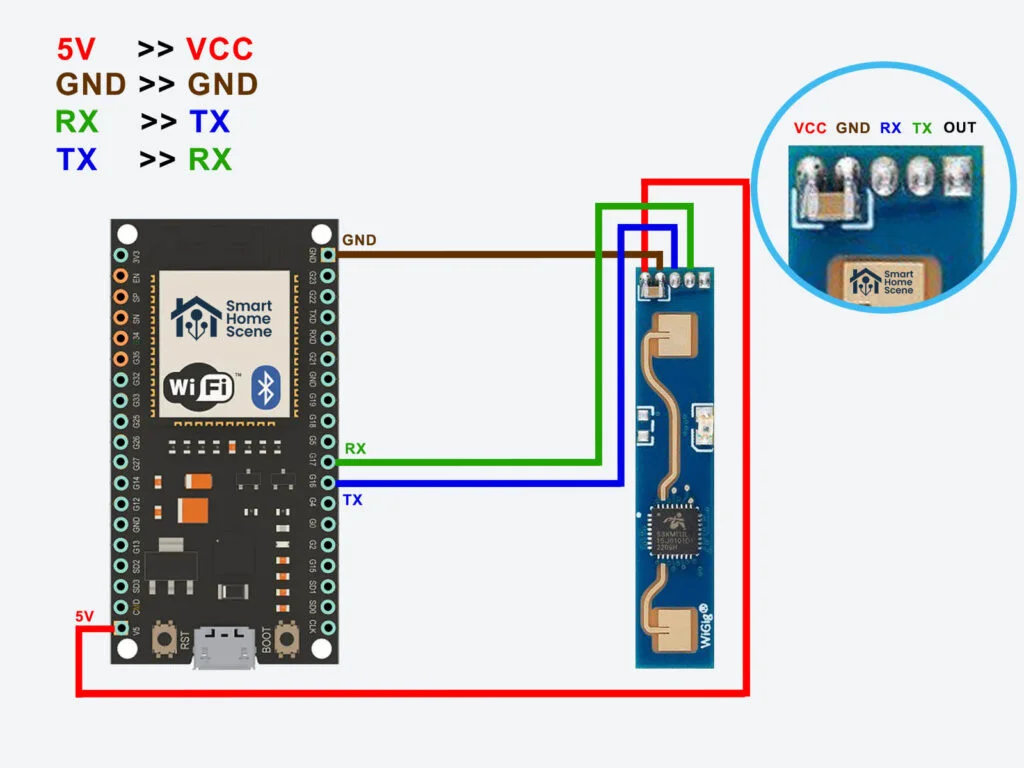
Software Setup: ESPHome
ESPHome is the easiest way to integrate ESP32 devices with Home Assistant. It provides a simple YAML-based configuration system. For another ESP32 + ESPHome + Home Assistant project, see our garage climate monitor that protects tools from rust.
Installing ESPHome
Option 1: Home Assistant Add-on (Easiest)
- In Home Assistant, go to Settings → Add-ons
- Add-on Store → ESPHome
- Install and start ESPHome
- Open Web UI
Option 2: Docker
docker run -d \
  --name esphome \
  --restart unless-stopped \
  -v /path/to/esphome:/config \
  -p 6052:6052 \
  esphome/esphome
Option 3: Python (pip)
pip install esphome
esphome dashboard /path/to/config
Creating the ESP32 Configuration
Create a new device in ESPHome:
esphome:
  name: presence-sensor-bedroom
  platform: ESP32
  board: esp32dev
  framework:
    type: arduino

wifi:
  ssid: "YourWiFiSSID"
  password: "YourWiFiPassword"

  # Enable fallback hotspot
  ap:
    ssid: "Presence Sensor Fallback"
    password: "fallback123"

# Enable logging
logger:

# Enable Home Assistant API
api:
  encryption:
    key: "your-encryption-key-here"

# OTA updates
ota:
  - platform: esphome
    password: "your-ota-password"

# Web server for status
web_server:
  port: 80

# UART for LD2410
uart:
  tx_pin: GPIO5
  rx_pin: GPIO4
  baud_rate: 256000

# LD2410 BLE and Radar sensor
ld2410:
  timeout: 150ms
  # Optional: Configure detection zones
  max_move_distance: 6m
  max_still_distance: 4m
  g0_move_threshold: 10
  g0_still_threshold: 10

# Binary sensors for motion and presence
binary_sensor:
  - platform: ld2410
    has_target:
      name: "Bedroom Motion"
    has_moving_target:
      name: "Bedroom Moving Target"
    has_still_target:
      name: "Bedroom Still Target"

# Sensor for distance
sensor:
  - platform: ld2410
    moving_distance:
      name: "Bedroom Moving Distance"
    still_distance:
      name: "Bedroom Still Distance"
    detect_distance:
      name: "Bedroom Detect Distance"
    move_energy:
      name: "Bedroom Move Energy"
    still_energy:
      name: "Bedroom Still Energy"

# Status LED (optional)
status_led:
  pin:
    number: GPIO2
    inverted: true
Compiling and Flashing
-
Compile the firmware:
- Click "Install" in ESPHome
- Select "Plug into this computer"
- Flash over USB
-
Or use OTA (Over-The-Air):
- Connect ESP32 to WiFi first (via USB)
- Then use OTA for future updates
- No need to physically access device
Home Assistant Integration
Automatic Discovery
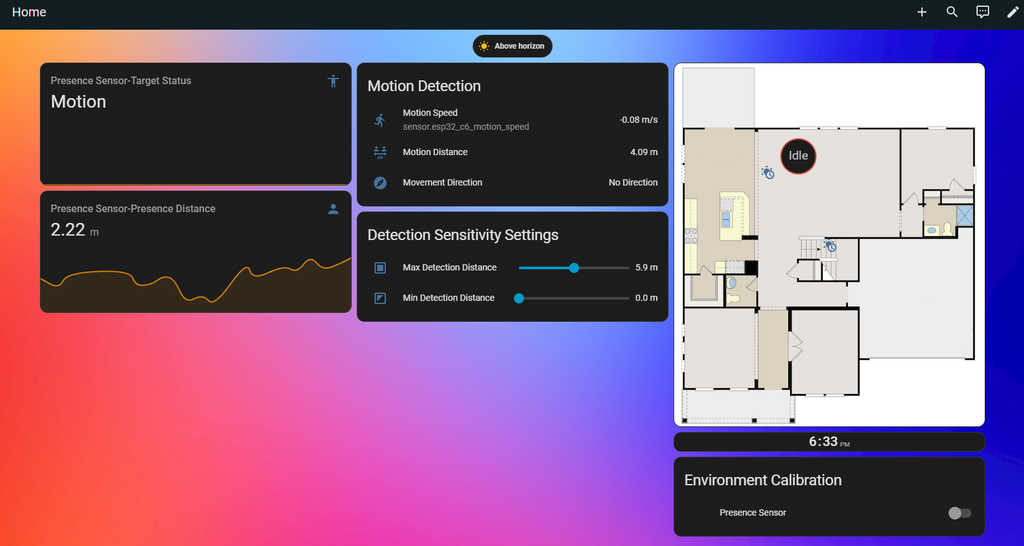
If ESPHome is properly configured, the device will automatically appear in Home Assistant:
- Go to Settings → Devices & Services
- Look for "ESPHome" integration
- The presence sensor should appear automatically
- Entities will be created for each sensor
Manual Configuration
If automatic discovery doesn't work, add manually. Ensure the rest of your ESPHome config matches the device; discovery usually works without manual config.
# configuration.yaml
esphome:
  name: presence-sensor-bedroom
  platform: ESP32
  # ... rest of config
Using the Sensors in Automations
Basic Presence Detection:
automation:
  - alias: "Turn on lights when presence detected"
    trigger:
      - platform: state
        entity_id: binary_sensor.bedroom_still_target
        to: "on"
    action:
      - service: light.turn_on
        target:
          entity_id: light.bedroom_lights

  - alias: "Turn off lights when no presence"
    trigger:
      - platform: state
        entity_id: binary_sensor.bedroom_still_target
        to: "off"
        for:
          minutes: 5
    action:
      - service: light.turn_off
        target:
          entity_id: light.bedroom_lights
Advanced: Motion vs Presence:
automation:
  - alias: "Bright lights on motion"
    trigger:
      - platform: state
        entity_id: binary_sensor.bedroom_moving_target
        to: "on"
    action:
      - service: light.turn_on
        target:
          entity_id: light.bedroom_lights
        data:
          brightness: 255

  - alias: "Dim lights for presence"
    trigger:
      - platform: state
        entity_id: binary_sensor.bedroom_still_target
        to: "on"
        from: "off"
    condition:
      - condition: state
        entity_id: binary_sensor.bedroom_moving_target
        state: "off"
    action:
      - service: light.turn_on
        target:
          entity_id: light.bedroom_lights
        data:
          brightness: 128
Advanced Configuration
Fine-Tuning Detection Zones
The LD2410 allows you to configure detection zones:
ld2410:
  timeout: 150ms
  max_move_distance: 6m      # Maximum distance for motion detection
  max_still_distance: 4m     # Maximum distance for presence detection
  g0_move_threshold: 10      # Sensitivity zone 0 (0-0.75m) motion
  g0_still_threshold: 10     # Sensitivity zone 0 presence
  g1_move_threshold: 20      # Zone 1 (0.75-1.5m)
  g1_still_threshold: 20
  g2_move_threshold: 30      # Zone 2 (1.5-2.5m)
  g2_still_threshold: 30
  g3_move_threshold: 40      # Zone 3 (2.5-4m)
  g3_still_threshold: 40
  g4_move_threshold: 50      # Zone 4 (4-6m)
  g4_still_threshold: 50
Tuning Tips:
- Start with default values
- Increase thresholds to reduce sensitivity
- Decrease thresholds to increase sensitivity
- Test in your actual environment
- Adjust zone-by-zone based on room layout
Multiple Sensors
For larger rooms, use multiple sensors:
# Sensor 1 - Room entrance
esphome:
  name: presence-sensor-bedroom-entrance
  # ... config with different GPIO pins

# Sensor 2 - Room center
esphome:
  name: presence-sensor-bedroom-center
  # ... config
Combine in Home Assistant:
template:
  - binary_sensor:
      - name: "Bedroom Any Presence"
        state: >
          {{ is_state('binary_sensor.bedroom_entrance_still_target', 'on') or
             is_state('binary_sensor.bedroom_center_still_target', 'on') }}
Enclosure and Installation
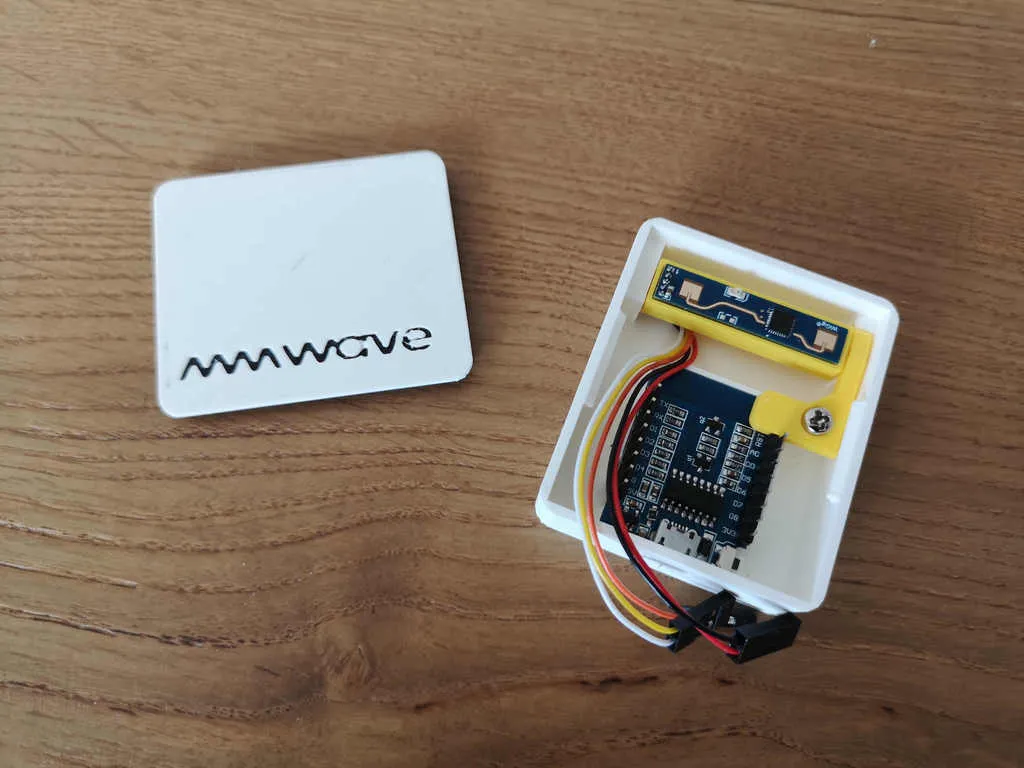
3D Printed Enclosure
Design considerations:
- Allow airflow (sensor can get warm)
- Mounting options (wall, ceiling)
- Cable management
- LED visibility (if using status LED)
Popular Designs:
- Search Thingiverse for "LD2410 enclosure"
- Many designs available for ESP32 + LD2410
- Choose based on mounting preference
Installation Tips
Mounting Location:
- Ceiling mount: Best coverage, detects entire room
- Wall mount: Good for specific areas
- Corner mount: Maximizes detection range
- Height: 2-3 meters (6-10 feet) recommended
Orientation:
- Sensor should face the area to monitor
- Avoid pointing at windows (can detect outside)
- Consider furniture placement
- Test before permanent installation
Power:
- USB power bank: Portable, good for testing
- Wall adapter: Reliable for permanent install
- PoE (with adapter): Professional installation
- Battery (with ESP32-S3): Truly wireless (advanced)
Troubleshooting
Sensor Not Detecting
Check Wiring:
- Verify all connections
- Check power (5V for LD2410)
- Test with multimeter
- Try different GPIO pins
Check Configuration:
- Verify UART pins match wiring
- Check baud rate (256000 for LD2410)
- Review ESPHome logs
- Test with serial monitor
Environmental Factors:
- Metal objects can interfere
- Thick walls block detection
- Test in different locations
- Adjust sensitivity thresholds
False Positives
Reduce Sensitivity:
- Increase threshold values
- Reduce detection distance
- Adjust zone-specific thresholds
- Add delay before triggering
Filter in Home Assistant:
template:
  - binary_sensor:
      - name: "Bedroom Presence Filtered"
        state: >
          {{ is_state('binary_sensor.bedroom_still_target', 'on') }}
        delay_on: 00:00:05  # 5 second delay
Connection Issues
WiFi Problems:
- Check signal strength
- Use 2.4GHz (ESP32 doesn't support 5GHz)
- Reduce distance to router
- Check ESPHome logs
Home Assistant Not Seeing Device:
- Verify API encryption key matches
- Check firewall settings
- Ensure ESPHome add-on is running
- Restart Home Assistant
Use Cases and Applications
Room Occupancy Automation
Smart Lighting:
- Turn on when presence detected
- Dim when stationary presence
- Turn off after timeout
- Different scenes for motion vs presence
- For addressable LED strips and advanced effects, see our custom LED strip guide
Climate Control:
- Adjust HVAC based on occupancy
- Turn off when room empty
- Set different temps for occupied/unoccupied
- For workshop or garage: combine with our tool inventory system for a complete automation setup
Entertainment Systems:
- Pause media when room empty
- Adjust volume based on presence
- Turn on TV when motion detected
Security Applications
Intrusion Detection:
- Alert on unexpected presence
- Monitor specific zones
- Integrate with security system
- Record events in Home Assistant
- Pair with Frigate NVR for camera + presence—know when someone is in the room vs just passing by
Energy Efficiency
Power Management:
- Turn off devices when room empty
- Reduce heating/cooling for unoccupied rooms
- Smart power strips based on presence
- Monitor occupancy patterns
- For workshop power monitoring, see our CT clamp energy monitor guide
Comparison: mmWave vs Other Sensors
| Sensor Type | Motion | Presence | Range | Cost | Complexity |
|---|---|---|---|---|---|
| PIR | Yes | No | 5-10m | $ | Low |
| mmWave | Yes | Yes | 6m+ | $$ | Medium |
| Ultrasonic | Yes | Limited | 3-5m | $ | Medium |
| Camera | Yes | Yes | Variable | $$$ | High |
| ToF | Yes | Limited | 2-4m | $$ | Medium |
mmWave Advantages:
- Best presence detection
- Privacy-friendly (no camera)
- Good range
- Reasonable cost
- Works in darkness
FAQ: Questions People Actually Ask
Can mmWave detect through walls?
Thin drywall: yes. Thick concrete or brick: no. Radar can penetrate thin materials like drywall and glass, but dense walls block the signal. Mount the sensor in the room you want to monitor.
Is it pet-friendly?
Yes, and configurable. Reduce sensitivity thresholds or shorten detection distance to ignore small pets. You can also tune zone-by-zone so the sensor ignores the area where your cat sleeps.
Does it work in the dark?
Yes. mmWave uses radar, not optical sensors. It works in complete darkness, bright sunlight, and any lighting condition. No IR illuminator needed.
Is it privacy-friendly?
Yes. No camera, no images, no facial recognition. The radar detects that something is present and its distance—it doesn't identify who or what. Your data never leaves the device.
LD2410 vs LD2410C—which should I buy?
Either works. The LD2410C is a compact form factor; the standard LD2410 is more common and often cheaper. ESPHome config is the same. Choose based on your enclosure size.
Can I use this without Home Assistant?
Yes. ESPHome exposes MQTT and a REST API. You can integrate with Node-RED, OpenHAB, or any system that speaks MQTT. The web server on the ESP32 also shows sensor status.
Conclusion
Building a presence sensor with ESP32 and mmWave technology gives you capabilities that commercial sensors can't match at a fraction of the cost. The LD2410 sensor, combined with ESPHome and Home Assistant, creates a powerful, customizable presence detection system.
Key benefits:
- Accurate presence detection: Knows when someone is in a room, even if still
- Privacy-focused: No cameras, radar-based detection
- Customizable: Fine-tune for your specific needs
- Cost-effective: ~$15-20 total cost
- Integrates seamlessly: Works with Home Assistant ecosystem
Whether you're automating lights, optimizing energy usage, or building a comprehensive smart home, mmWave presence sensors are a significant upgrade over traditional PIR sensors. The combination of ESP32's flexibility and mmWave's accuracy makes this a perfect project for any smart home enthusiast.
Part of our ESP32 + Home Assistant series. Pair this with our Frigate NVR guide for camera + presence combos, or our workshop inventory system for tool tracking. For more ESP32 projects, see Random Nerd Tutorials and the ESPHome documentation.