Frigate NVR Setup Guide: Local AI Security for Your Garage (2026)

On this page(11 sections)
Introduction: The Problem with Cloud Cameras
Your garage is more than just a place to park; it’s where your most valuable tools, project cars, and memories live. Naturally, you want to keep an eye on it. However, the standard consumer solution—cloud-based cameras—has three major flaws:
- Privacy: Your video is sent to a third-party server, often with questionable security.
- Reliability: If your internet goes down, so does your security.
- Intelligence: Most cloud cameras "detect motion," but in a workshop, that usually means every moth or swaying spiderweb triggers a false alarm.
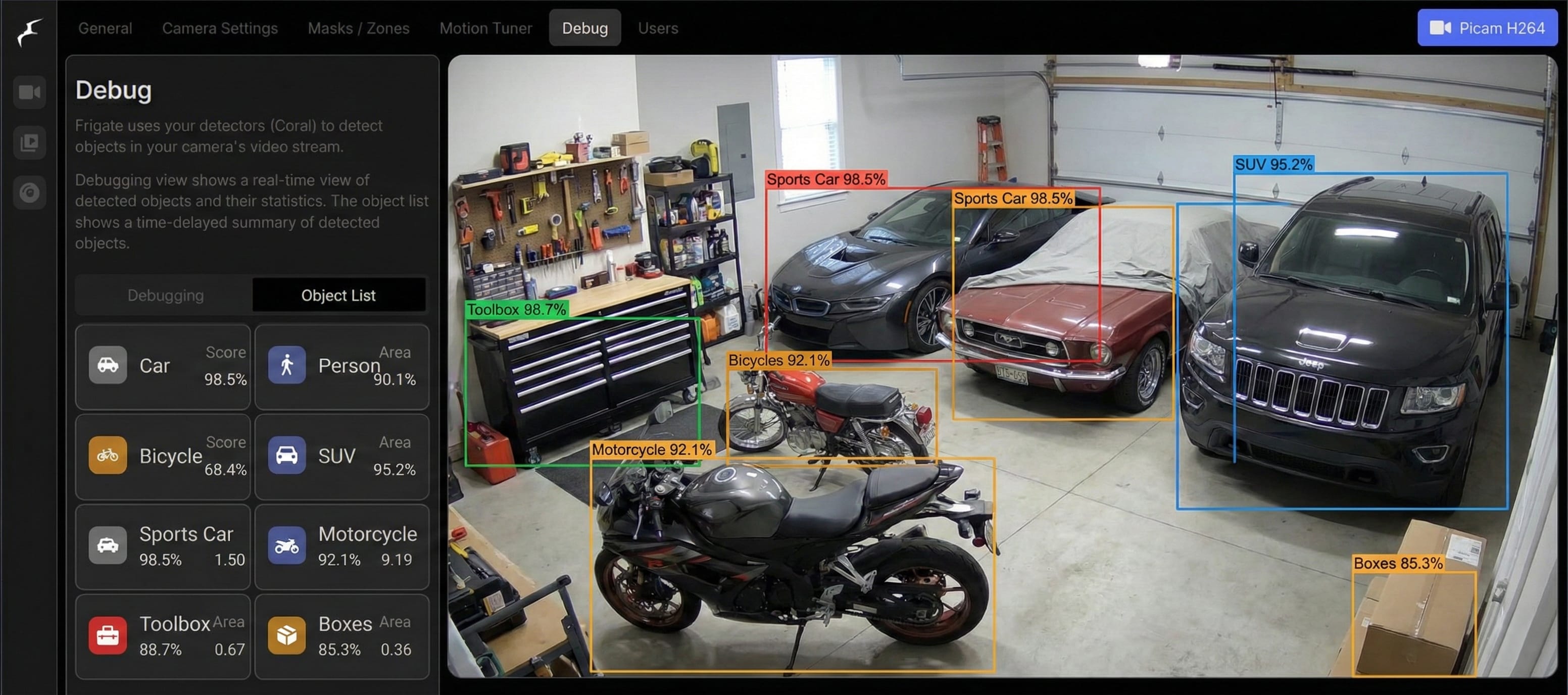
The solution is Frigate NVR. It’s an open-source, local-first NVR (Network Video Recorder) that uses real-time AI to identify exactly what is in your camera’s view. It doesn’t just see "motion"; it sees a "person," a "car," or a "dog," and it does it all on your local hardware without a single byte leaving your house.
In this guide, you'll learn:
- How to choose hardware (including the Coral TPU) and cameras
- Docker deployment and Frigate configuration
- Setting up detection zones and motion masks for zero false alarms
- Home Assistant integration for instant phone alerts
- Troubleshooting common issues and cost breakdown
Frigate vs Alternatives: Why Go Local?
Before diving in, here's how Frigate stacks up against other NVR options:
| NVR | AI Detection | Privacy | Cost | Best For |
|---|---|---|---|---|
| Frigate | Local (Coral/GPU) | Full local | Free | Homelab, Home Assistant users |
| Blue Iris | Local (optional) | Local | ~$60 | Windows users |
| Shinobi | Plugin-based | Variable | Free | Multi-tenant setups |
| ZoneMinder | Basic motion | Local | Free | Legacy systems |
Frigate is ideal if you want privacy-first, AI-powered object detection that integrates seamlessly with Home Assistant. No cloud, no subscriptions, no vendor lock-in.
1. Hardware Requirements: The Foundation of Speed
AI object detection is computationally expensive. Running it on a standard CPU will likely result in high latency and melting hardware. To run Frigate effectively, you need a Coral TPU.
For the server itself, an Intel N100 mini PC or similar offers excellent price/performance for video encoding and can run Frigate alongside other homelab services. See our in-depth N100 mini PC power consumption and performance review for real-world measurements and hardware comparisons.
Hardware Recommendations
| Component | Recommendation | Why? |
|---|---|---|
| Server | Mini PC (Intel NUC / HP ProDesk) | Better price/performance than a Pi for video encoding. |
| Accelerator | Google Coral TPU (USB or M.2) | Offloads AI detection from CPU (required for real-time). |
| Storage | 1TB+ WD Purple / Seagate Skyhawk | Surveillance-rated drives handle constant writing. |
| Cameras | Amcrest / Reolink / Dahua PoE | Must support ONVIF/RTSP streams. |

Camera Selection Comparison
| Feature | PoE (Power over Ethernet) | WiFi Cameras |
|---|---|---|
| Stability | High | Moderate/Low |
| Installation | Harder (runs CAT6) | Easier (needs power only) |
| Bandwidth | Dedicated | Shared with Home WiFi |
| Frigate Support | Excellent | Variable (latency issues) |
Pro Tip: If you can run a wire, always choose PoE. WiFi cameras often struggle with the constant high-bandwidth streams Frigate requires for 24/7 analysis.
What Will This Cost?
| Component | Typical Cost |
|---|---|
| Coral TPU (USB or M.2) | $60–80 |
| Mini PC (if needed) | $150–250 |
| PoE camera | $40–80 |
| Storage (1TB surveillance) | ~$50 |
| Total (new build) | $300–460 |
Cloud cameras run $10–30/month. A Frigate setup pays for itself in 12–24 months—and you own the hardware forever.
2. Docker Configuration: Deploying the Sentry
Frigate runs best as a Docker container. New to Docker? See our guide to self-hosting with Docker for the fundamentals. We’ll use Docker Compose to manage the container and its hardware dependencies.
The Docker Compose File
version: '3.9'
services:
  frigate:
    container_name: frigate
    privileged: true # needed for Coral/GPU access
    restart: unless-stopped
    image: ghcr.io/blakeblackshear/frigate:stable
    shm_size: "128mb" # critical for high-res streams
    devices:
      - /dev/bus/usb:/dev/bus/usb # for USB Coral
      # - /dev/dri/renderD128:/dev/dri/renderD128 # for Intel GPU acceleration
    volumes:
      - /etc/localtime:/etc/localtime:ro
      - ./config:/config
      - /mnt/storage/frigate/recordings:/media/frigate
      - type: tmpfs # reduces SD card/SSD wear
        target: /tmp/cache
        tmpfs:
          size: 1000000000
    ports:
      - "5000:5000"
      - "8554:8554" # RTSP feeds
      - "8555:8555" # WebRTC
    environment:
      FRIGATE_MQTT_PASSWORD: password
3. Frigate Configuration: Defining Your World
The heart of Frigate is the config.yml. This is where you define your cameras, detection zones, and what objects you want to track. Draw zones and masks directly in the Frigate UI—coordinates are auto-generated when you outline each area.
Example config.yml
mqtt:
  host: 192.168.1.10
  user: mqtt_user
  password: mqtt_password

detectors:
  coral:
    type: edgetpu
    device: usb

cameras:
  garage_shop:
    ffmpeg:
      inputs:
        - path: rtsp://admin:[email protected]:554/live
          roles:
            - detect
            - record
    detect:
      enabled: True
      width: 1280
      height: 720
      fps: 5 # 5fps is plenty for AI detection
    objects:
      track:
        - person
        - car
        - motorcycle
    zones:
      tool_chest_area:
        coordinates: 320,240,640,240,640,480,320,480 # draw in Frigate UI; coordinates are auto-generated
      workbench:
        coordinates: 100,200,400,200,400,400,100,400
    record:
      enabled: True
      retain:
        days: 7
        mode: all
      events:
        retain:
          default: 30
          mode: active_objects
4. Setting Up Detection Zones and Masks
A "Zone" is a specific area you want to monitor (e.g., your tool chest). A "Mask" is an area you want Frigate to ignore (e.g., a tree that sways in the wind).
Tuning for Zero False Alarms
- Motion Masks: Use the Frigate UI to draw masks over anything that moves but isn't relevant (ceiling fans, leaves).
- Object Filters: If you have a car parked in the garage, it will always be detected as a "car." Use
filtersto tell Frigate to only notify you if the "car" moves or if a new car appears.
Warning: Be careful not to mask areas where a person might actually appear. Masks prevent all detection in that area.
5. Home Assistant Integration: Smart Notifications
Frigate’s real power comes when you connect it to Home Assistant. You can set up notifications that send a snapshot of the detected object directly to your phone. For even smarter automation, combine Frigate with mmWave presence sensors to know when someone is in the room versus just passing by.
The "Sentry Alert" Automation
alias: "Security: Person Detected in Garage"
trigger:
  - platform: mqtt
    topic: frigate/events
action:
  - condition: template
    value_template: "{{ wait.json['after']['label'] == 'person' }}"
  - service: notify.mobile_app_phone
    data:
      title: "Garage Alert!"
      message: "A person was detected near the workbench."
      data:
        image: "https://your-ha-url.com/api/frigate/notifications/{{ trigger.payload_json['after']['id'] }}/snapshot.jpg"
        clickAction: "/lovelace/security"
6. Fine-Tuning and Maintenance
- Storage Management: Frigate’s
recordsettings are powerful. You can record 24/7 at low resolution but keep high-res "events" for 30 days. - CPU vs. GPU: Ensure you have hardware acceleration configured for
ffmpeg. This reduces CPU usage significantly by using the Intel or Nvidia GPU to decode the video streams before passing them to the Coral TPU.
7. Troubleshooting Common Issues
Coral TPU Not Detected
Run lsusb (Linux) or check Device Manager (Windows) to verify the Coral appears. If it doesn't show up:
- Try a different USB port (USB 3.0 required)
- Ensure the container has
privileged: trueand the correctdevices:mapping - On Linux, add udev rules so the Coral is accessible:
sudo usermod -aG plugdev $USER(then reboot)
High CPU Usage
Enable ffmpeg hardware acceleration. Uncomment the devices line for Intel GPU (/dev/dri/renderD128) or add the equivalent for NVIDIA/AMD. This offloads video decoding from the CPU to the GPU.
Too Many False Positives
Use motion masks to ignore areas that move but aren't relevant (trees, ceiling fans). Add object filters to ignore stationary cars or pets you don't care about. Lower fps in the detect section (5 fps is usually enough).
WebRTC or Stream Won't Load
Check that port 8555 is open and not blocked by a firewall. Ensure your cameras support RTSP—some budget cameras only offer proprietary protocols that Frigate can't use.
8. FAQ: Questions People Actually Ask
Can Frigate run without a Coral TPU?
Yes, but it will be slower and more CPU-intensive. A Coral TPU handles 100+ detections per second; on CPU alone you might get 5–10 fps with noticeable lag. For 1–2 cameras, CPU-only can work. For more, the Coral is essential.
Is Frigate free?
Yes. Frigate is open-source (MIT license) and completely free. There is an optional paid add-on called Frigate+ with models trained on real security footage—but the core software costs nothing.
How many cameras can one Coral handle?
A single USB Coral can typically handle 4–6 cameras at 5 fps each, depending on resolution. For 8+ cameras, consider a second Coral or an M.2 Coral for better throughput.
Does Frigate work with WiFi cameras?
It can, but we don't recommend it. WiFi cameras often have latency, dropouts, and bandwidth issues that frustrate 24/7 recording and real-time AI analysis. PoE is far more reliable.
Can I use Frigate without Home Assistant?
Yes. Frigate works standalone. You lose the tight integration (automations, notifications, dashboards), but MQTT and the built-in UI still give you event viewing and recordings. Many people run Frigate without HA.
9. Conclusion: Peace of Mind, Locally Hosted
You now have a professional-grade security system that rivals enterprise solutions. Your data stays on your server, your notifications are instant and accurate, and you finally know exactly what is happening in your shop—whether it’s a delivery person at the door or a curious cat investigating your project car.
Future Improvements
- License Plate Recognition: Use the
Double TakeorPlate Recognizeradd-on to identify specific vehicles. - Facial Recognition: Add the Double Take add-on for recognizing known faces versus strangers.
- Audio Detection: Add microphones to detect the sound of breaking glass or power tools.
- Smart Lighting: Link Frigate to your garage lights; if a person is detected after 10 PM, flood the area with light.
Stay secure, and happy hosting!
This is the third article in our "Smart Workshop" series. Read our workshop inventory management guide to track every tool and part in your shop.