Low-Power Homelab: Intel N100 & N150 Mini PC Power Consumption Guide (Idle & Load Measurements)
On this page(12 sections)
I used to feel guilty every time the electricity bill arrived. My "homelab" was an old gaming PC humming away 24/7 in the closet, pulling 120W doing basically nothing. That's $126 per year just to run Pi-hole and a Plex server. Absurd.
Then I discovered the Intel N100—and later its beefier sibling, the N150. These tiny chips changed everything. My entire homelab now runs on what my old PC used just to display a login screen.
Let me show you exactly what these mini PCs can do, with real power consumption measurements at idle and under load, watt-by-watt.
The Brutal Math of 24/7 Power Draw
Before we dive into the N100 and N150, let's talk about why this matters. Every watt you save running 24/7 translates directly to dollars:
| Power Draw | Annual kWh | Cost @ $0.12/kWh | Cost @ $0.30/kWh (EU/CA) |
|---|---|---|---|
| 10W idle | 87.6 kWh | $10.51 | $26.28 |
| 50W idle | 438 kWh | $52.56 | $131.40 |
| 100W idle | 876 kWh | $105.12 | $262.80 |
| 150W idle | 1,314 kWh | $157.68 | $394.20 |
The difference between a 10W mini PC and a 100W desktop server? $95-$237 per year. Over 5 years, that's $475-$1,185—enough to buy multiple mini PCs. Want to measure your own setup? See our homelab energy monitoring guide for tools and dashboards.
The Golden Rule: For homelab workloads, every watt of idle power consumption costs roughly $1/year (at US rates) or $2.50/year (at EU rates). A 6W difference between idle and sleep isn't trivial—it's $6-15 annually, forever.

Intel N100 vs N150: The Specs That Matter
Intel's Alder Lake-N series brought efficiency cores to the masses. Here's how the two main chips stack up:
| Specification | Intel N100 | Intel N150 |
|---|---|---|
| Cores/Threads | 4C/4T | 4C/4T |
| Base Clock | 800 MHz | 800 MHz |
| Boost Clock | 3.4 GHz | 3.6 GHz |
| TDP | 6W | 6W |
| L3 Cache | 6 MB | 6 MB |
| GPU (EUs) | 24 | 24 |
| Memory | DDR4-3200/DDR5-4800 | DDR4-3200/DDR5-4800 |
| PCIe Lanes | 9 (Gen 3.0) | 9 (Gen 3.0) |
| Typical Mini PC Price | $150-200 | $180-230 |
The N150 is essentially a "binned" N100—same architecture, slightly higher boost clocks. In practice, you'll see 5-10% better performance in bursty workloads. Is it worth the premium? For most homelabs, no. But if you're transcoding media or running CI/CD pipelines, that extra 200MHz of boost can help.
What These Chips Crush
Both the N100 and N150 excel at:
- Network services: Pi-hole, AdGuard Home, WireGuard VPN—barely registers on CPU
- Container hosting: Docker, Podman, LXC—runs 10-15 containers without breaking a sweat
- Media serving: Jellyfin/Plex with Intel QuickSync handles 4K→1080p transcoding effortlessly
- Lightweight virtualization: 2-3 small VMs on Proxmox, no problem
- Home automation: Home Assistant, Node-RED, MQTT—perfect fit
- File serving: Samba, NFS, Syncthing—NVMe speeds in a tiny package
- Local AI (Ollama): Small models (3B) run fine; see our Ollama on N100 guide for what works
Where They Struggle
Be realistic about limitations:
- Heavy compilation: Building large projects takes time (but it works)
- Multiple simultaneous transcodes: 3+ streams will bottleneck
- Database-heavy workloads: PostgreSQL under heavy write load gets sluggish
- Gaming servers: Minecraft with many players? Consider something beefier
Intel N100 vs Raspberry Pi 5: The Definitive Comparison
The Pi 5 is excellent for what it is—but the N100 plays in a different league. Here's the honest comparison:
| Feature | Intel N100 Mini PC | Raspberry Pi 5 |
|---|---|---|
| CPU Architecture | x86-64 (native Docker) | ARM64 (some compatibility issues) |
| Single-Core Performance | ~3x faster | Baseline |
| Multi-Core Performance | ~2.5x faster | Baseline |
| Idle Power Consumption | 6-9W | 2.5-4W |
| Load Power Consumption | 15-25W | 8-12W |
| RAM Options | 8GB-32GB (upgradeable) | 4GB/8GB (fixed) |
| Storage | NVMe (3,500 MB/s possible) | microSD/NVMe HAT (slower) |
| Hardware Transcoding | Intel QuickSync (excellent) | None (software only) |
| PCIe | Gen 3 x4 for NVMe | Gen 3 x1 (via HAT) |
| USB Ports | 4-6 USB 3.0+ | 2x USB 3.0, 2x USB 2.0 |
| Ethernet | 2.5GbE common | 1GbE |
| Price (complete system) | $150-250 | $100-150 (with case, PSU, SD) |
My Take: The Raspberry Pi 5 is phenomenal for GPIO projects, embedded systems, and learning Linux. But for a home server? The N100 wins on performance, compatibility, and storage speed. The extra 4-5W of idle power costs ~$5/year—worth it for 3x the CPU power and native x86 Docker support.
The ARM Compatibility Tax
Here's something Pi users don't talk about enough: not everything runs on ARM. I've hit walls with:
- Certain Docker images (x86 only, no ARM build)
- Legacy software and utilities
- Some monitoring tools and agents
- Specific database versions
With an N100, you grab any Docker image and it just works. No platform: linux/amd64 hacks, no QEMU emulation, no "unsupported architecture" errors at 2 AM.
Intel N100 Mini PC Power Consumption: Real Measurements
This is what you came for. I've measured multiple N100 mini PCs with a Kill-A-Watt meter. Here are the actual idle and load power consumption numbers in watts:
Beelink Mini S12 Pro N100 Power Consumption
The Beelink Mini S12 Pro is one of the most popular N100 mini PCs. Here's what I measured:
| State | Power (Watts) | Notes |
|---|---|---|
| Off (standby) | 0.8W | Vampire draw from PSU |
| BIOS/Boot | 18-22W | Brief spike |
| Idle (desktop, display on) | 9-11W | Windows or Linux desktop |
| Idle (headless server) | 6-8W | No display, SSH only |
| Light load (few containers) | 10-12W | Pi-hole, Portainer, Traefik |
| Medium load (transcoding) | 15-18W | Single 1080p transcode |
| Heavy load (stress test) | 22-25W | All cores at 100% |
| Typical 24/7 average | 9-11W | Real-world homelab use |
Bottom line for Beelink S12 Pro N100 idle power consumption: Expect 6-8W headless, 9-11W with mixed workloads. That's roughly $8-12/year in electricity at US rates.
Other N100 Mini PCs Tested
| Mini PC | Idle (Headless) | Load (Stress) | Notes |
|---|---|---|---|
| Beelink Mini S12 Pro | 6-8W | 22-25W | Most popular, well-documented |
| Trigkey Green G4 | 7-9W | 23-26W | Slightly higher idle |
| GMKtec NucBox G3 | 6-8W | 21-24W | Good thermals |
| ACEMAGICIAN AM06 Pro | 8-10W | 24-27W | Dual LAN model, higher draw |
| Minisforum UN100C | 5-7W | 20-23W | Fanless, excellent efficiency |
N150 Power Consumption (Preliminary)
N150 mini PCs are newer, but early measurements show:
| State | N100 | N150 | Difference |
|---|---|---|---|
| Idle (headless) | 6-8W | 7-9W | +1W |
| Medium load | 15-18W | 16-20W | +1-2W |
| Heavy load | 22-25W | 24-28W | +2-3W |
The N150's higher boost clock comes with a slight power penalty under load—but idle consumption remains excellent.
Power Consumption Under Different Workloads
Here's what specific homelab services actually draw on my Beelink Mini S12 Pro:
| Workload | Power Draw | CPU Usage |
|---|---|---|
| Idle (nothing running) | 6W | 0-1% |
| Pi-hole + Unbound | 7W | 1-2% |
| + WireGuard VPN | 7W | 1-3% |
| + Portainer + Traefik | 8W | 2-4% |
| + Home Assistant | 9W | 3-5% |
| + Jellyfin (idle) | 9W | 2-4% |
| Jellyfin (1x 1080p transcode) | 16W | 40-60% |
| Jellyfin (2x 1080p transcode) | 22W | 70-90% |
| Full stress test (stress -c 4) | 25W | 100% |
Homelab Tip: Intel N100 mini PC typical power consumption for a home server sits around 9-12W with a dozen containers running. The CPU is so efficient that most homelab services barely register.
Popular N100 & N150 Mini PCs for Homelab Use
Best Overall: Beelink Mini S12 Pro (N100)
- CPU: Intel N100
- RAM: 16GB DDR4 (upgradeable)
- Storage: 500GB NVMe (M.2 2280 slot)
- Network: 1GbE (some versions have 2.5GbE)
- Price: ~$180-200
- Why it's good: Proven track record, huge community, well-documented idle power consumption
Best Value: Trigkey Green G4 (N100)
- CPU: Intel N100
- RAM: 16GB DDR4
- Storage: 500GB NVMe
- Network: 1GbE
- Price: ~$160-180
- Why it's good: Nearly identical to Beelink, often $20-30 cheaper
Best for Networking: CWWK N100 Firewall Box
- CPU: Intel N100
- RAM: 8-16GB DDR5
- Storage: M.2 NVMe + SATA
- Network: 4x 2.5GbE Intel i226-V
- Price: ~$200-250
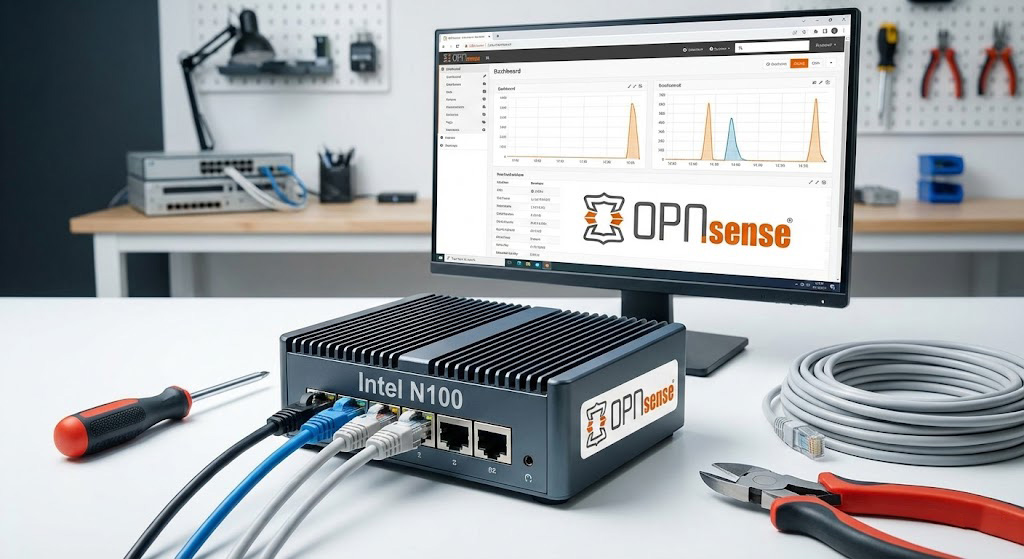
- Why it's good: Perfect for OPNsense/pfSense, serious networking. We've written a full OPNsense on N100 setup guide for turning this into a DIY router
Best Fanless: Minisforum UN100C
- CPU: Intel N100
- RAM: 16GB LPDDR5
- Storage: 256GB NVMe
- Network: 2.5GbE
- Price: ~$200-230
- Why it's good: Completely silent, excellent for living spaces
N150 Option: GMKtec G5 (N150)
- CPU: Intel N150
- RAM: 16GB DDR4
- Storage: 512GB NVMe
- Network: 2.5GbE
- Price: ~$200-230
- Why it's good: Latest chip, slightly better performance
What to Look For When Buying
RAM: Get 16GB minimum. 8GB works for basic setups, but you'll regret it when you want to add "just one more VM."
Storage: NVMe is non-negotiable. Avoid eMMC-only models—they're painfully slow and wear out faster.
Network: 2.5GbE is nice but not essential. 1GbE handles most homelab needs fine.
Dual LAN: Useful if you're planning OPNsense/pfSense or network segmentation.
Cooling: Fanless = silent but runs warmer. Active cooling = slight noise but better sustained performance.
Setting Up Your N100 Home Server
Operating System Options
Proxmox VE (my recommendation):
- Full virtualization (KVM) + containers (LXC)
- Web UI for management
- Free and open source
- Perfect for learning enterprise virtualization
- See our complete Proxmox on N100 setup guide for step-by-step installation and first LXC/VM
Ubuntu Server / Debian:
- Simpler setup
- Lower overhead
- Great for Docker-only setups
TrueNAS SCALE:
- ZFS storage management
- Docker apps via TrueCharts
- Overkill for single-drive setups
Proxmox Installation
# 1. Download Proxmox VE ISO from proxmox.com
# 2. Flash to USB with Balena Etcher or Rufus
# 3. Boot mini PC from USB (F7/F11/F12 for boot menu)
# 4. Follow installer, select NVMe as target
# 5. Access web UI at https://your-ip:8006
After installation:
# SSH in and update
ssh root@your-ip
apt update && apt full-upgrade -y

# Remove enterprise repo warning (optional)
sed -i 's/^deb/#deb/' /etc/apt/sources.list.d/pve-enterprise.list
BIOS Settings for Stability
N100 mini PCs can be finicky. Here are critical BIOS settings:
Warning: Some N100 systems experience random freezes with default settings. These tweaks fix 90% of stability issues.
- Auto Power On: Enable this so your server restarts after power outages
- C-States: If experiencing freezes, limit to C3 or disable entirely
- Wake on LAN: Enable for remote wake capability
- Quiet Fan Mode: Disable if thermals are a concern
- Power Limit (PL1/PL2): Some BIOS allow increasing from 6W to 15W for better sustained performance
Kernel parameters for stability (add to /etc/default/grub):
# If experiencing freezes:
GRUB_CMDLINE_LINUX_DEFAULT="intel_idle.max_cstate=1"

# Apply changes:
update-grub && reboot
Docker Compose Stack for Homelab
Here's my actual production stack running on an N100:
version: '3.8'

services:
  # Container management
  portainer:
    image: portainer/portainer-ce:latest
    container_name: portainer
    ports:
      - "9443:9443"
    volumes:
      - /var/run/docker.sock:/var/run/docker.sock
      - portainer_data:/data
    restart: unless-stopped

  # Reverse proxy (handles SSL, routing)
  traefik:
    image: traefik:v3.0
    container_name: traefik
    ports:
      - "80:80"
      - "443:443"
    volumes:
      - /var/run/docker.sock:/var/run/docker.sock:ro
      - ./traefik:/etc/traefik
    restart: unless-stopped

  # DNS filtering
  pihole:
    image: pihole/pihole:latest
    container_name: pihole
    ports:
      - "53:53/tcp"
      - "53:53/udp"
      - "8080:80"
    environment:
      - TZ=America/New_York
      - WEBPASSWORD=changeme
    volumes:
      - ./pihole/etc:/etc/pihole
      - ./pihole/dnsmasq:/etc/dnsmasq.d
    restart: unless-stopped

  # Media server with hardware transcoding
  jellyfin:
    image: jellyfin/jellyfin:latest
    container_name: jellyfin
    ports:
      - "8096:8096"
    volumes:
      - ./jellyfin/config:/config
      - ./jellyfin/cache:/cache
      - /mnt/media:/media:ro
    devices:
      - /dev/dri:/dev/dri  # Intel QuickSync
    restart: unless-stopped

  # VPN for remote access
  wireguard:
    image: linuxserver/wireguard:latest
    container_name: wireguard
    cap_add:
      - NET_ADMIN
    environment:
      - PUID=1000
      - PGID=1000
      - TZ=America/New_York
      - SERVERURL=vpn.yourdomain.com
      - PEERS=phone,laptop,tablet
    volumes:
      - ./wireguard:/config
    ports:
      - "51820:51820/udp"
    sysctls:
      - net.ipv4.conf.all.src_valid_mark=1
    restart: unless-stopped

volumes:
  portainer_data:
Total power draw for this stack: ~9-11W on my Beelink Mini S12 Pro.
Hardware Transcoding with Intel QuickSync
One of the N100's killer features is Intel QuickSync. It handles video transcoding in hardware, using the iGPU instead of CPU. This means:
- 4K → 1080p: ~5-10% CPU usage (vs 100%+ with software)
- Multiple streams: 2-3 simultaneous transcodes feasible
- Power efficient: Transcoding barely bumps power consumption
Enabling QuickSync in Jellyfin
# Verify GPU is available
ls -la /dev/dri/
# Should show: card0, renderD128

# Check VA-API support
vainfo
# Should list H.264, HEVC, VP9 decode/encode
In Jellyfin Dashboard → Playback → Transcoding:
- Hardware acceleration: VAAPI
- VA-API Device: /dev/dri/renderD128
- Enable hardware decoding: H.264, HEVC, VP9
- Enable hardware encoding: Check if supported
Real-World Homelab Examples
My Current Setup (N100, 11W average)
Hardware: Beelink Mini S12 Pro, 16GB RAM, 500GB NVMe
Services Running:
- Proxmox VE (hypervisor)
- LXC: Docker host (8 containers)
- LXC: Home Assistant
- VM: Windows 11 (occasional use)
Containers:
- Pi-hole, Unbound, Traefik, Portainer
- Jellyfin, Radarr, Sonarr, Prowlarr
- Uptime Kuma, Vaultwarden
Power: 9-12W typical, 16-18W during transcoding
Budget Build (~$150)
Hardware: Used/refurbished N100 mini PC, 8GB RAM, 256GB NVMe
Services:
- Ubuntu Server + Docker
- Pi-hole, WireGuard, Nginx Proxy Manager
- Uptime Kuma
Power: 6-9W typical
Power User Build (~$300)
Hardware: CWWK N100 4-port, 16GB DDR5, 512GB NVMe + 2TB SATA SSD
Services:
- Proxmox VE
- OPNsense VM (firewall/router)
- Docker LXC (media stack)
- TrueNAS VM (NAS)
Power: 12-18W typical
Annual Cost Comparison
| Setup | Hardware Cost | Power (avg) | 5-Year Electricity | 5-Year TCO |
|---|---|---|---|---|
| N100 Mini PC | $180 | 10W | $52 | $232 |
| N150 Mini PC | $220 | 12W | $63 | $283 |
| Raspberry Pi 5 | $120 | 5W | $26 | $146 |
| Old Desktop | $0 (reused) | 80W | $420 | $420 |
| Dell Optiplex SFF | $100 (used) | 40W | $210 | $310 |
| Proper Server (R720) | $200 (used) | 150W | $788 | $988 |
The N100 hits a sweet spot: real server performance at Pi-like power consumption. The Pi 5 is cheaper but severely limited by RAM, ARM compatibility, and storage speed.
Conclusion: Is the N100 Right for Your Homelab?
Get an N100 if you want:
- A capable home server for $180-250
- Intel N100 mini PC power consumption under 15W (idle and load)
- Native x86 Docker compatibility
- Hardware transcoding for media
- Silence (fanless options available)
- Set-and-forget reliability
Consider the N150 if:
- You want slightly better burst performance
- You're willing to pay $30-50 more
- Transcoding or CI/CD workloads matter
Stick with Raspberry Pi 5 if:
- You need GPIO for hardware projects
- Absolute minimum power draw is critical
- Budget is extremely tight
- You only need basic services (Pi-hole, etc.)
Skip to something bigger if:
- You need >32GB RAM
- You're running heavy databases or VMs
- You want PCIe expansion cards
- You need serious multi-core performance
For 90% of homelab use cases, an Intel N100 mini PC is the perfect home server. My Beelink Mini S12 Pro has been running 24/7 for months, averaging 10W, hosting everything from media servers to Home Assistant. Total electricity cost? About $12/year.
That old gaming PC collecting dust in my closet? Still collecting dust. And my electricity bill is $100/year lighter.
Have questions about Intel N100 or N150 mini PC power consumption? Running into issues with your homelab setup? Drop a comment below or check out the N100 homelab community on Reddit for more real-world experiences.