Running Local AI Agents: A Guide to Ollama and Open WebUI

On this page(15 sections)
Your last ChatGPT query just cost a fraction of a cent—and your code snippet is now on OpenAI's servers. What if you could run the same kind of AI at home, for free, with zero data leaving your machine?
Local LLMs—large language models that run entirely on your hardware—make that possible. With Ollama and Open WebUI, setting up your own private AI assistant is now accessible to anyone with a modern computer.
In this guide, you'll learn:
- Why local AI beats cloud for privacy and cost
- How Ollama and Open WebUI work together
- Which hardware and models fit your setup
- Getting your first chat running in minutes
- Real-world use cases (without code walls)
Why Run AI Locally?
| Aspect | Cloud (ChatGPT/Claude) | Local (Ollama) |
|---|---|---|
| Cost | $20–200+/month | $0 after hardware |
| Privacy | Data on servers | Never leaves your machine |
| Offline | No | Yes |
| Customization | Limited | Full control |
When you use ChatGPT or Claude, your conversations are processed on remote servers. Running models locally means your data never leaves your machine. Cloud AI charges per token; local models have no ongoing API fees. You get complete control—experiment with different models, integrate into homelab workflows, and use AI offline in air-gapped environments.

Understanding Ollama
Ollama is a tool that simplifies running large language models locally. Think of it as Docker for LLMs—it handles model downloads, optimization, and provides a simple API. Open WebUI is the ChatGPT-like interface that talks to Ollama.
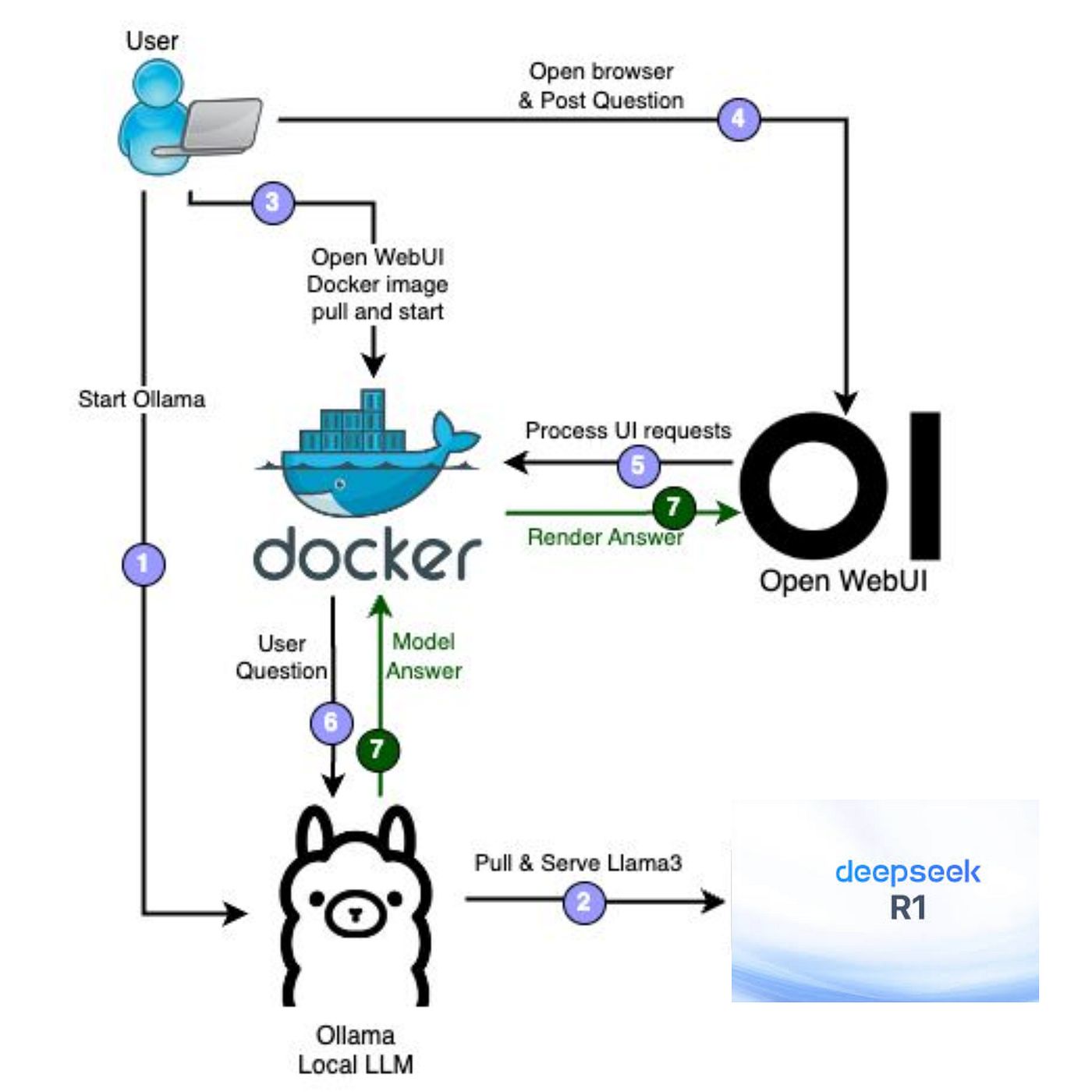
Key features: Easy model management (one command), automatic hardware optimization, REST API for integration, cross-platform (Windows, macOS, Linux), and GPU support when available.
Installing Ollama
Windows: Download the installer from ollama.com, run it, and Ollama starts as a background service.
Linux: Run curl -fsSL https://ollama.com/install.sh | sh or brew install ollama
macOS: Run brew install ollama or download from ollama.com
Verify with ollama --version.
Your First Local Model
Download and run a model with two commands: ollama pull llama3.2 then ollama run llama3.2. You'll get an interactive chat—type /bye to exit.
Model Selection
| Use Case | Model | Size | Notes |
|---|---|---|---|
| General | llama3.2, qwen2.5:7b | 3B–7B | Fast, efficient |
| Coding | deepseek-coder, codellama | 7B | Code generation |
| Reasoning | deepseek-r1 | 7B+ | Advanced logic |
| Max quality | llama3.1:70b | 70B | Needs 16GB+ VRAM |
See all models at the Ollama library.
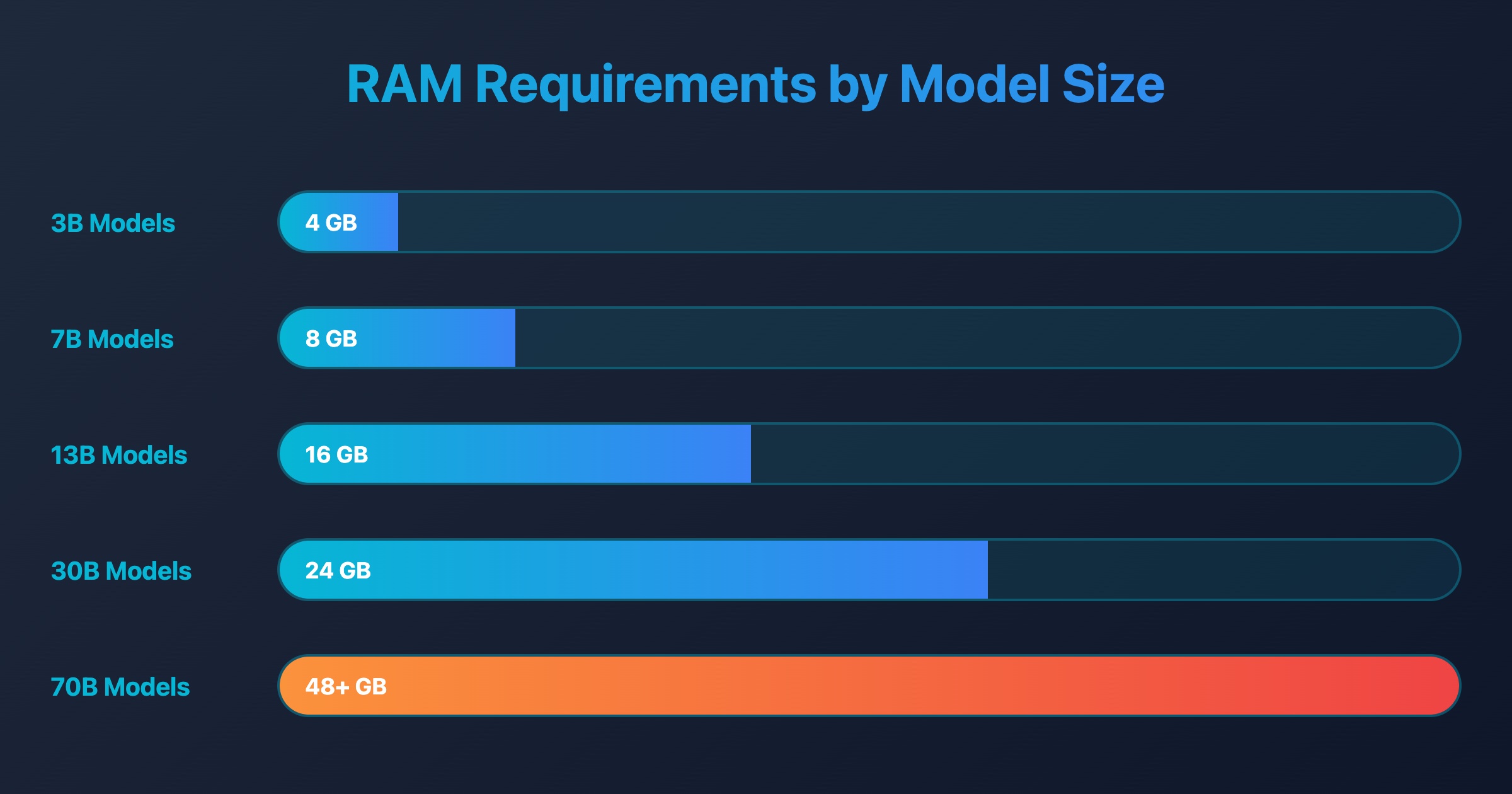
Hardware Requirements
| Setup | RAM | GPU | Models | Use Case |
|---|---|---|---|---|
| Entry | 8–16GB | Optional | 3B (llama3.2) | Testing, light use |
| Recommended | 16–32GB | 8GB+ VRAM | 7B (mistral, qwen) | Daily use |
| High-end | 32GB+ | 16GB+ VRAM | 70B+ | Best quality |
Ollama uses GPU when available and falls back to CPU/RAM. Models that fit in VRAM run fastest. For homelab servers, see our N100 mini PC power and performance guide.
Setting Up Open WebUI
Open WebUI gives you a ChatGPT-like web interface for your local models. It's open-source and easy to run with Docker. New to Docker? See our self-hosting with Docker guide.
One command to run it:
docker run -d -p 3000:8080 --add-host=host.docker.internal:host-gateway -v open-webui:/app/backend/data --name open-webui --restart always ghcr.io/open-webui/open-webui:main
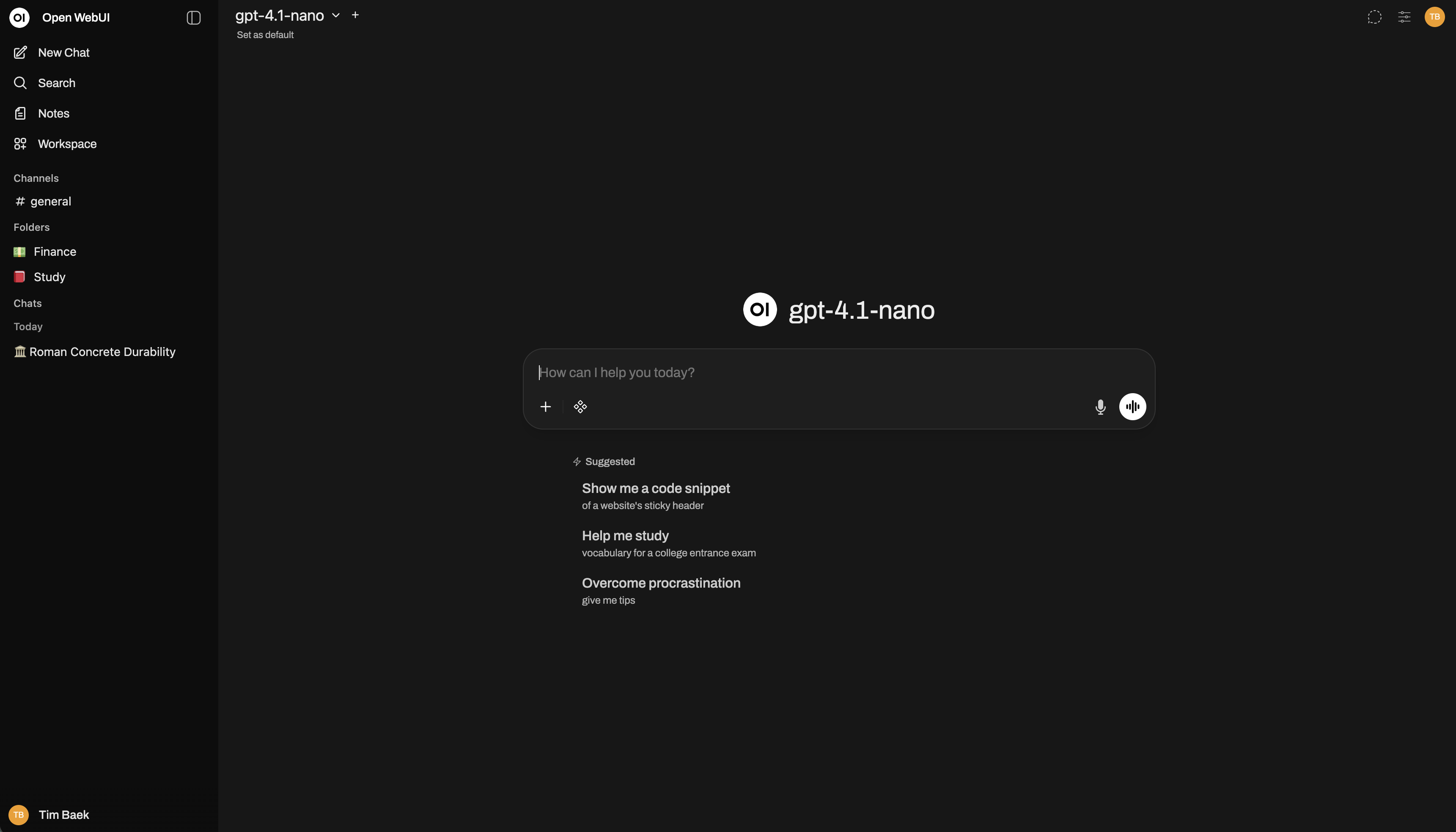
Visit http://localhost:3000 and create your admin account. Open WebUI auto-detects local Ollama. If Ollama is elsewhere, go to Settings → Connection and set the Ollama Base URL (default: http://localhost:11434).
Using Open WebUI
Open WebUI provides a polished interface similar to ChatGPT:
Basic Chat
- Select a model from the dropdown (top of the chat interface)
- Start typing your message
- The model responds in real-time
Advanced Features
Model Management:
- View all available models
- Download new models directly from the UI
- Switch between models mid-conversation
Chat Features:
- Multiple conversation threads
- Export conversations (Markdown, PDF, etc.)
- Share conversations with others
- Code syntax highlighting
Customization:
- Custom system prompts
- Adjustable temperature and other parameters
- Custom instructions per model
API Integration
Ollama exposes a REST API at http://localhost:11434. POST to /api/generate with model and prompt—any language can call it. Example: curl http://localhost:11434/api/generate -d '{"model":"llama3.2","prompt":"Explain Docker","stream":false}'
When Does Local AI Pay Off?
ChatGPT Plus: $20/month = $240/year. Heavy API use: $50–200+/month. With local AI, you pay once for hardware (or use what you have)—no ongoing fees. Payback: 6–24 months for power users; immediate if you value privacy. Another local AI use case: Frigate NVR for camera object detection.
Performance Optimization
Ollama uses GPU automatically when available. Run ollama ps during inference to verify. For NVIDIA: ensure latest drivers and CUDA. Quantized models (e.g. llama3.2:3b-q4_0) use less memory and run faster. CPU-only: close apps, use 3B–7B models. GPU: fit models in VRAM; use ollama ps to monitor.
Common Use Cases
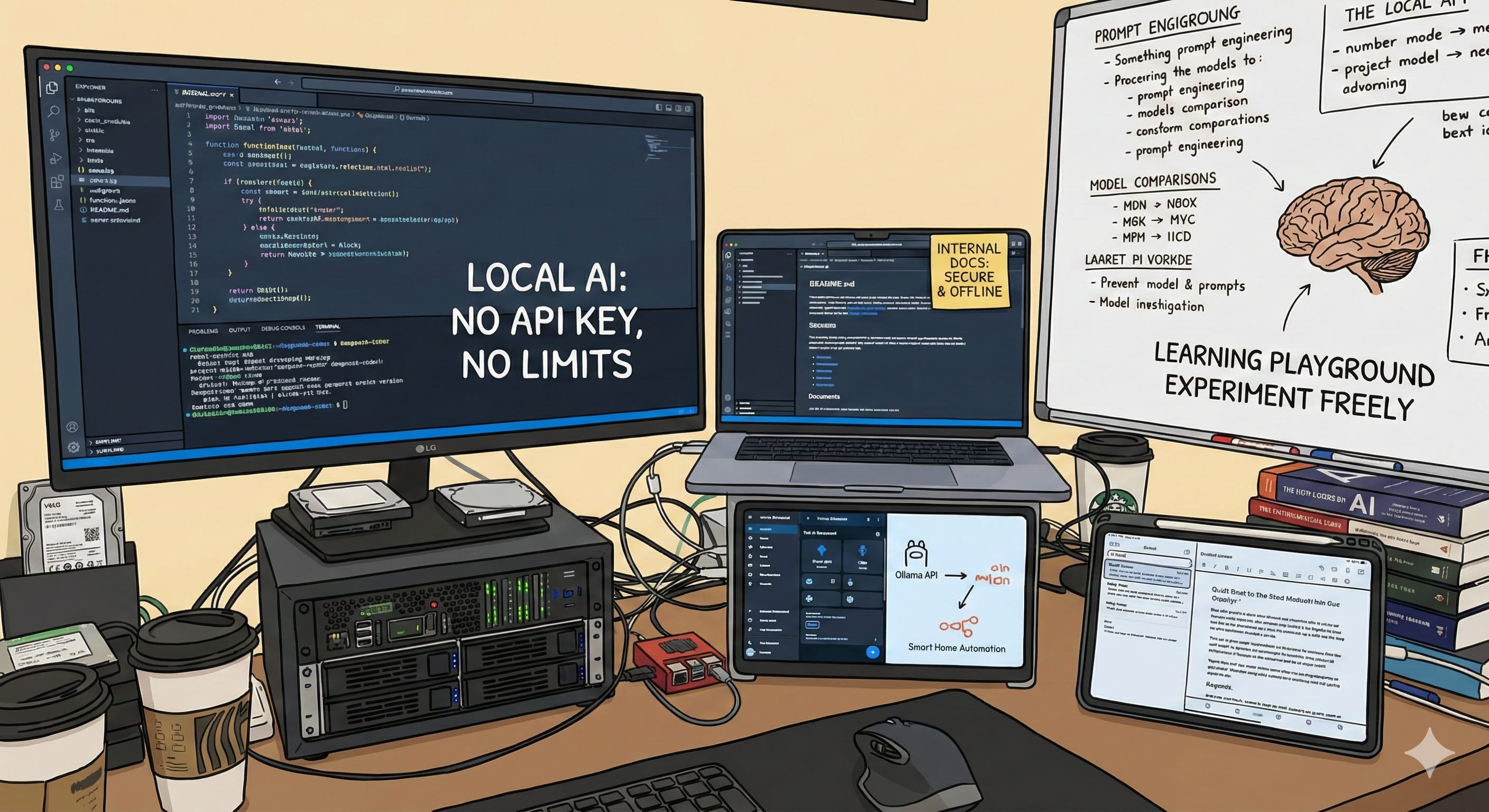
Code assistant: Pull deepseek-coder, ask it to refactor a function—no API key, no usage limits.
Private docs: Generate READMEs and internal docs without sending proprietary code to the cloud.
Homelab brain: Ollama's API plugs into scripts, n8n, or Home Assistant for AI-powered automations.
Content creation: Draft blog posts, emails, or creative writing without cloud services.
Learning playground: Experiment with prompts and models without watching a usage meter.
Troubleshooting
Model won't download: Check internet and disk space. Try ollama pull llama3.2 (smaller model) first.
Slow performance: Run ollama ps to verify GPU use. Use smaller models (llama3.2) or quantized variants. Ensure enough RAM/VRAM.
Out of memory: Use smaller models, close apps, try quantized variants.
Open WebUI can't connect: Verify Ollama with ollama list. Check connection URL in Open WebUI Settings → Connection. Ensure same network if using Docker; check firewall.
Security Considerations
While local AI is more private than cloud services, consider these security practices:
- Network Exposure: If exposing Ollama to your network, use authentication
- Model Sources: Only download models from trusted sources (Ollama's official library)
- System Access: Limit who can access your Ollama instance
- Updates: Keep Ollama and Open WebUI updated for security patches
FAQ: Questions People Actually Ask
Can I run Ollama without a GPU?
Yes. CPU works—responses will be slower. Models like llama3.2 (3B) run reasonably on 8GB RAM, CPU-only.
How much VRAM do I need for 7B models?
About 6–8GB. An RTX 3060 (12GB) or similar handles 7B models comfortably.
Is Open WebUI free?
Yes. It's open-source. No subscriptions.
Can I use Ollama with an AMD GPU?
Yes. Ollama supports AMD via ROCm. Ensure drivers are installed.
Does my data ever leave my machine?
No. Everything runs locally. Your prompts and responses never touch the cloud.
What's the difference between Ollama and Open WebUI?
Ollama is the engine—it runs the models. Open WebUI is the chat interface that talks to Ollama. You need both for the full experience.
Conclusion
Running AI locally with Ollama and Open WebUI gives you modern language models with complete privacy and no ongoing costs. The barrier to entry is lower than ever—if you have a modern computer, you can start today.
Pair with our Frigate NVR guide for another local AI use case, or our self-hosting with Docker guide. For advanced topics, see building fully local LLM architectures and local LLM best practices.