Running Ollama on Intel N100 & N150 Mini PC: Local AI Models, Speed, and Power Draw
On this page(10 sections)
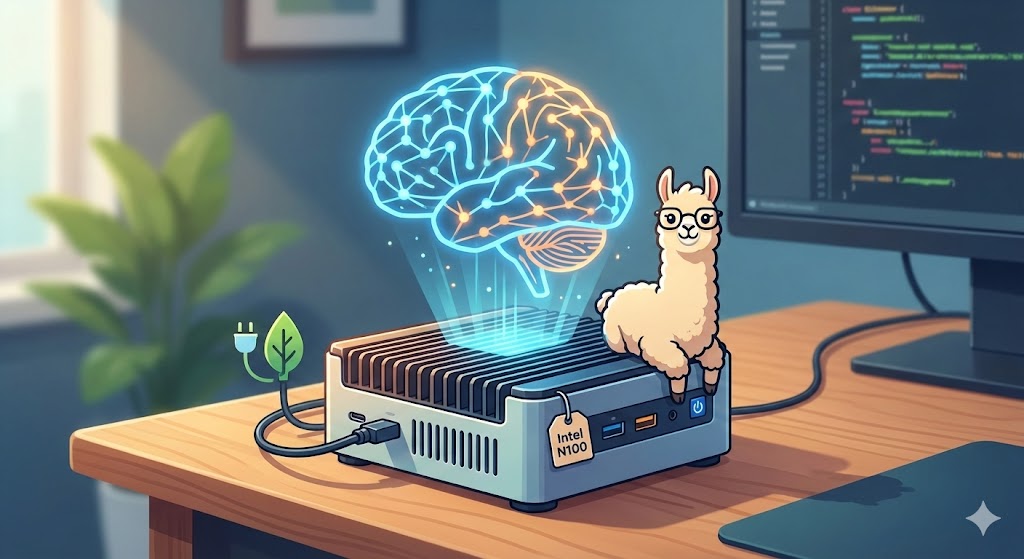
I wanted local AI without a big GPU or a noisy desktop. My N100 mini PC was already running the homelab—could it run Ollama too? Short answer: yes, but only for small models. Here’s what actually works, real speed and power numbers, and how to get the most out of local AI on low-power hardware.
This guide covers Ollama on N100 (and N150), which models run, power consumption during inference, and practical tips. For full Ollama setup and Open WebUI, see our main Ollama guide.
Which Ollama Models Run on N100? (3B, 7B, and What to Skip)
On an Intel N100 you’re running CPU-only—no discrete GPU and no use of the iGPU for LLM inference. So 3B parameter models work; 7B and above crawl or run out of memory.
| Model | Size | RAM Needed | Approx. tokens/s (N100) | Verdict |
|---|---|---|---|---|
| llama3.2 | 3B | ~4 GB | 5–15 | Best choice |
| phi-3-mini | 3.8B | ~4 GB | 4–12 | Good |
| qwen2.5:3b | 3B | ~4 GB | 5–14 | Good |
| tinyllama | 1.1B | ~1.5 GB | 15–25 | Fast but limited |
| gemma2:2b | 2B | ~2 GB | 8–18 | Solid |
Best model on N100: For a balance of speed and quality, stick with llama3.2 (3B). One
ollama run llama3.2and keep it loaded for the session.
What Does Not Work Well
- 7B+ models – Need 8–16 GB for the model alone; N100 systems often have 16 GB total, leaving little for the OS and other services. Inference is very slow on CPU.
- Heavy reasoning – Models like deepseek-r1 are too demanding for N100.
- GPU acceleration – N100 has Intel UHD (24 EUs) for video decode/encode, but Ollama does not use it for LLM inference. You are CPU-only.
Reality check: If you need 7B+ quality or heavy reasoning, use a cloud API or a machine with more RAM and a GPU. N100 is great for 3B and light tasks.
N100 vs N150 for Ollama: Is the Upgrade Worth It?
The N150 is the same architecture as the N100 with slightly higher boost clocks (3.6 GHz vs 3.4 GHz). For Ollama you can expect about 5–15% better tokens per second on the same 3B models. The 16 GB RAM limit is unchanged, so you’re still limited to 3B-class models.
Verdict: Only worth it for local AI if you already have an N150 or the price is very close. For “Ollama only,” an N100 is enough.
Raspberry Pi 5 vs N100 for Local AI
| Aspect | Raspberry Pi 5 | Intel N100 Mini PC |
|---|---|---|
| Architecture | ARM64 | x86-64 |
| Ollama support | Yes | Yes |
| Max RAM | 8 GB | 16–32 GB |
| Typical speed (3B) | Slower than N100 | Faster, more headroom |
| Power (inference) | Lower | Slightly higher (e.g. 12–18 W) |
For local AI only, N100 usually wins on speed and RAM; Pi 5 wins on watts and cost if 3B is enough and you’re okay with slower inference.
Ollama on N100: Real Speed (Tokens per Second) and Power Draw
| State | Power Draw |
|---|---|
| Idle (Ollama not running) | 6–8 W |
| Ollama idle (model loaded) | 8–10 W |
| During inference (3B model) | 12–18 W |
| Peak (all cores) | 20–25 W |
Expect about 12–15 W during typical chat. At $0.12/kWh, that’s roughly $1.50–2/month if you use it a few hours a day. For full N100 idle and load measurements across workloads, see our N100 power guide.
Why No GPU on N100 for Ollama?
The Intel integrated GPU (QuickSync) on the N100 is used for video transcoding in apps like Jellyfin or Plex. Ollama does not use it for LLM inference—that would require a different stack. On N100 you are always running on CPU.
Installation: Native vs Docker
Native (recommended):
curl -fsSL https://ollama.com/install.sh | sh
ollama pull llama3.2
ollama run llama3.2
Docker: Run Ollama in a container if you prefer. Use the official image and pass through the host network so Open WebUI can reach it. The main Ollama guide covers Docker setups.
Open WebUI on N100
Open WebUI runs fine on an N100. Run Ollama natively (or in Docker) and point Open WebUI at it (e.g. http://host.docker.internal:11434 or your host IP). To avoid RAM pressure, keep one model loaded and avoid too many concurrent chats or frequent model swaps. Full setup is in our Ollama and Open WebUI guide.
Quick Optimization Tips
- Stick to one model per session – Use
ollama run <model>and keep that model loaded instead of constantly switching. - Prefer quantized 3B – Q4 (e.g. default pulls) are a good balance of speed and quality on CPU.
- Free RAM when chatting – Close other heavy services (browsers, other containers) if you hit OOM or slowdowns.
- Optional: Set
OLLAMA_NUM_THREADS=4(or your core count) if you want to pin thread usage; often default is fine.
Practical Use Cases on N100
- Light coding help – e.g. “Explain this regex” or “Suggest a one-liner for X.”
- Drafts and summaries – e.g. Shorten an email, bullet-summarize a note.
- Learning and experimentation – Try prompts and models without API costs.
- Homelab automation – Use the REST API for scripts and simple agents.
Avoid: long documents, complex reasoning, and anything that needs 7B+ quality.
Conclusion
Ollama on N100 is viable for 3B models. You get local, private AI at about 12–18 W during use. For heavier workloads, you’ll need a machine with more RAM and a GPU.
For N100 power measurements and hardware comparison, see our N100 power guide. For full Ollama setup, see our Ollama and Open WebUI guide.