
Ollama vs LM Studio (2026): Which Local AI Runner Should You Use?

On this page(13 sections)
Short answer: pick LM Studio if you want a polished desktop app to find, test and chat with models on your own computer. Pick Ollama if you want a lightweight background service that other apps, Docker containers and your homelab can call. Both are free, both run the same open-weight models on mostly the same engine, and they happily live side by side on one machine.
That's the 10-second version. The rest of this guide walks through the differences that actually matter in 2026: interface, model formats (GGUF and MLX), GPU support, API servers, headless use, licensing, and which front-ends work best with each.
Ollama vs LM Studio at a Glance
| Ollama | LM Studio | |
|---|---|---|
| What it is | Model runner and API server | Desktop app for discovering and running models |
| Main interface | CLI + REST API (plus a simple chat app on Mac/Windows) | Full GUI, plus the lms CLI |
| Where models come from | Curated Ollama library, or GGUF straight from Hugging Face | Built-in Hugging Face browser |
| Model formats | GGUF (and safetensors import) | GGUF, plus MLX on Apple Silicon |
| Apple Silicon | Metal, with an MLX engine in recent versions | Metal (llama.cpp) or MLX, your choice per model |
| API | Native API + OpenAI-compatible /v1 | OpenAI-compatible /v1 + its own REST API |
| Default port | 11434 | 1234 |
| Headless / server | Excellent (systemd service, Docker) | Possible (lms CLI, headless mode), less common |
| Official Docker image | Yes (ollama/ollama) | No mainstream official image at the time of writing |
| License | Open source (MIT) | Closed source, free for home and work |
| Best for | Homelabs, developers, always-on servers | Beginners, Mac users, trying lots of models |
If you're brand new to local AI, read our guide to the best local AI models for low-end hardware first. The memory math there applies equally to both tools.
What Each Tool Actually Is
Ollama
Ollama is best described as "Docker for LLMs". You pull a model with one command, and it runs as a background service that exposes an API on port 11434. It handles downloading, quantized formats, GPU detection and loading or unloading models in memory, so you don't have to think about any of it.
Ollama has always been a developer tool first. It does now ship a small desktop app on macOS and Windows with a basic chat window and a settings panel, but most people still use it through the terminal or through another app such as Open WebUI, an editor plugin, or Home Assistant.
LM Studio
LM Studio is a full desktop application for Windows, macOS and Linux. You search for a model, it shows which quantizations will fit your hardware, you click download, and you're chatting a minute later. Behind the GUI there's a capable local server, a CLI called lms, chat-with-documents, MCP tool support, and a lot of tuning knobs that Ollama hides away.
Think of LM Studio as the friendly workbench and Ollama as the plumbing.
Interface: Terminal and API vs Desktop App
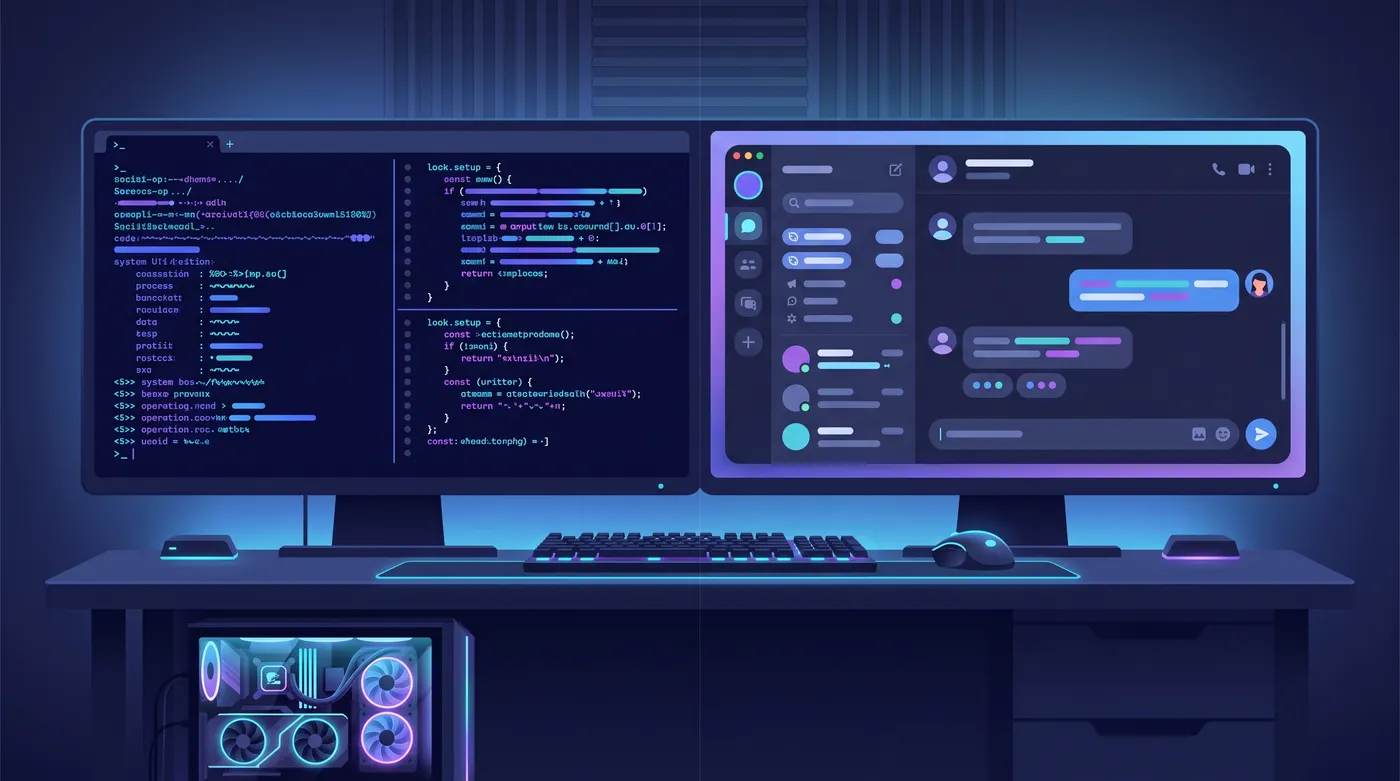
Ollama: a handful of commands
Everything in Ollama is a short command:
ollama pull qwen3.5:9b      # download a model
ollama run qwen3.5:9b       # chat in the terminal
ollama list                 # what's installed
ollama ps                   # what's loaded, and how much is on the GPU
ollama rm qwen3.5:9b        # delete a model
Customising a model means writing a small Modelfile, which is the Ollama equivalent of a Dockerfile:
FROM qwen3.5:9b
PARAMETER num_ctx 16384
PARAMETER temperature 0.6
SYSTEM You are a concise assistant for my homelab.
Then ollama create homelab-helper -f Modelfile gives you a new named model that any app can call. It's simple and scriptable, but there's no slider to drag.
LM Studio: point, click, tune
LM Studio's GUI is where it wins for most people:
- Model search with a "fits / too large" estimate for your exact GPU or Mac.
- Per-model settings for context length, GPU offload (how many layers go to the GPU), flash attention, KV-cache quantization and more.
- Side-by-side testing, so you can try three quantizations of the same model in an afternoon and keep the best one.
- A Developer tab that starts the API server and shows every request in a live log.
If you prefer the terminal, the bundled lms CLI covers the basics:
lms get qwen3.5-9b          # download a model
lms load qwen3.5-9b         # load it into memory
lms server start            # start the API on port 1234
lms ps                      # list loaded models
Models: Formats, Library and Discovery
GGUF everywhere
Both tools are built around GGUF, the quantized file format from the llama.cpp project. That means the same Q4_K_M or Q6_K file behaves the same way in either app, and the memory you need is identical. Ollama can also import safetensors models and create GGUF-style quantizations, but most people never touch that.
MLX on Apple Silicon
MLX is Apple's machine learning framework, and on M-series Macs it's often noticeably faster than the llama.cpp path. LM Studio has offered MLX models for a long time: search for a model, filter to MLX, and you're done. Ollama added an MLX-based engine for Apple Silicon in 2026, so the gap here has narrowed a lot. If you're on a Mac, the honest advice is to try your favourite model in both and keep whichever is faster.
Finding models
- Ollama has a curated library with short, memorable tags like
qwen3.5:9borgpt-oss:20b. It's tidy, but it only contains what Ollama has packaged. For anything else, you can pull GGUF files straight from Hugging Face withollama run hf.co/USER/REPO:Q4_K_M. - LM Studio searches Hugging Face directly, shows every available quantization, and highlights staff picks. It's the better tool for discovering models.
One thing to watch in 2026: some entries in Ollama's library are tagged cloud, which means they run on Ollama's servers rather than your hardware. They're optional and clearly labelled, but if privacy is the reason you're running local AI, stick to the local tags.
Running a Local AI Server: APIs, Headless and Docker
OpenAI-compatible endpoints
This is the feature that makes both tools so useful. Each one speaks the OpenAI Chat Completions API, so almost any app with an "OpenAI-compatible" or "custom base URL" option can use your local model instead:
# Ollama
curl http://localhost:11434/v1/chat/completions \
  -H "Content-Type: application/json" \
  -d '{"model": "qwen3.5:9b", "messages": [{"role": "user", "content": "Hello!"}]}'

# LM Studio (start the server first)
curl http://localhost:1234/v1/chat/completions \
  -H "Content-Type: application/json" \
  -d '{"model": "qwen3.5-9b", "messages": [{"role": "user", "content": "Hello!"}]}'
The API key can be any string, as neither tool checks it by default. That's also why you should never expose either port directly to the internet. Put them behind a VPN or a reverse proxy with authentication.
Both tools can load a model on demand when a request arrives and unload it after a period of inactivity. Ollama does this by default (models stay loaded for 5 minutes; change it with OLLAMA_KEEP_ALIVE). In LM Studio, look for the just-in-time loading and idle TTL settings in the server options.
Headless and always-on
This is where Ollama clearly wins. The Linux installer sets it up as a systemd service, it starts on boot, and it uses almost nothing while idle. To let other machines on your network reach it, set one environment variable:
sudo systemctl edit ollama.service
# add these lines in the editor:
# [Service]
# Environment="OLLAMA_HOST=0.0.0.0:11434"
sudo systemctl restart ollama
LM Studio can run as a server too. You can enable the server on login, drive everything with lms, and newer releases include a proper headless mode for machines without a desktop. It works, but it's a desktop app adapted for server duty rather than a server tool from day one.
Docker
For a homelab, Ollama's official image is the easy answer. Here's a Compose file for an NVIDIA box (you'll need the NVIDIA Container Toolkit):
services:
  ollama:
    image: ollama/ollama:latest
    container_name: ollama
    ports:
      - 11434:11434
    volumes:
      - ./ollama:/root/.ollama
    environment:
      - OLLAMA_KEEP_ALIVE=30m
    restart: unless-stopped
    deploy:
      resources:
        reservations:
          devices:
            - driver: nvidia
              count: all
              capabilities: [gpu]
AMD users on Linux can swap to the ollama/ollama:rocm image and pass through /dev/kfd and /dev/dri. If Docker is new to you, start with our self-hosting with Docker guide.
GPU Support: NVIDIA, AMD, Intel and Apple
| Hardware | Ollama | LM Studio |
|---|---|---|
| NVIDIA (CUDA) | ✅ Excellent | ✅ Excellent |
| AMD Radeon | ✅ ROCm on supported cards, Vulkan for many others | ✅ Vulkan runtime works on most cards, ROCm on some |
| Intel Arc | ⚠️ Vulkan support in recent versions; check your card | ✅ Via the Vulkan runtime |
| Apple Silicon | ✅ Metal, plus MLX engine | ✅ Metal (llama.cpp) or MLX |
| CPU only | ✅ Works well for small models | ✅ Works well for small models |
| Intel N100 iGPU | ❌ Runs on CPU | ❌ Effectively CPU |
The pattern: NVIDIA and Apple just work on both. On AMD and Intel GPUs, LM Studio's Vulkan runtime has historically been the less fiddly option on Windows, while Ollama's ROCm build is solid on Linux with a supported Radeon card. GPU support moves fast, so check the release notes for your exact card before buying hardware.
On a low-power mini PC you're on the CPU either way. Our Ollama on N100 test shows what that's like in practice.
Performance: Is One Faster?
Under the hood, both tools use llama.cpp / GGML for GGUF models. Ollama also has its own engine for some newer model families, and both now have an MLX path on Macs. In practice that means the same model, quantization and settings run at very similar speeds in either tool on Windows and Linux.
When people see a big difference, it's almost always one of these:
- Different context length. A larger context uses more memory and can push layers off the GPU. Compare like with like.
- Partial GPU offload. If
ollama psshows a CPU/GPU split, or LM Studio's offload slider isn't at max, the model doesn't fully fit, and speed falls off a cliff. - MLX vs GGUF on a Mac. MLX is often faster on Apple Silicon, so LM Studio with an MLX model can beat Ollama with a GGUF one. With Ollama's newer MLX engine, that comparison is much closer.
- Flash attention and KV-cache settings. LM Studio exposes these per model. In Ollama, set
OLLAMA_FLASH_ATTENTION=1andOLLAMA_KV_CACHE_TYPE=q8_0to save memory on long contexts.
The bigger performance lever isn't the runner at all. It's your memory bandwidth and whether the model fits. If you're shopping for hardware, our best local LLM for coding guide breaks down which GPUs make sense.
Licensing, Privacy and Cost
- Ollama is open source under the MIT license. You can read the code, fork it, and ship it inside your own project.
- LM Studio is free but closed source. Since mid-2025 its terms allow free use at home and at work without a separate commercial license, and a paid Enterprise plan exists for things like SSO and model access controls. Some parts around it, such as the
lmsCLI, the SDKs and its MLX engine, are published as open source, but the app itself is not. Terms can change, so check the current version on LM Studio's site if you're deploying it at a company.
For privacy, both run fully offline once a model is downloaded. Your prompts never leave your machine unless you choose a cloud model. The model weights have their own licenses (Apache 2.0, MIT, Gemma terms and so on) regardless of which runner you use.
Front-Ends: Open WebUI and Friends
If you want a ChatGPT-style interface for the whole household, Open WebUI is the most popular choice. It has first-class Ollama support (it can even pull and delete models for you), and it connects to LM Studio as a regular OpenAI-compatible endpoint.
docker run -d -p 3000:8080 \
  --add-host=host.docker.internal:host-gateway \
  -v open-webui:/app/backend/data \
  --name open-webui --restart always \
  ghcr.io/open-webui/open-webui:main
- With Ollama: Open WebUI usually finds it at
http://host.docker.internal:11434. - With LM Studio: go to Admin Panel → Settings → Connections, add an OpenAI connection with the URL
http://host.docker.internal:1234/v1and any API key.
Our Ollama + Open WebUI guide covers the full setup, and you can give it a voice with Kokoro TTS. The same OpenAI-compatible endpoint also plugs into code editors and smart homes. We use Ollama as the brain of a fully local Home Assistant voice assistant.
Which One Should You Use?

| You are... | Pick | Why |
|---|---|---|
| New to local AI and want to try models | LM Studio | Visual model search, fit estimates, zero terminal |
| On a Mac and want maximum speed | LM Studio (or test both) | Mature MLX support; Ollama's MLX engine is newer |
| Running a homelab server or NAS | Ollama | systemd service, official Docker image, tiny idle footprint |
| Building apps or scripts | Ollama | Simple API, Modelfiles, huge ecosystem of integrations |
| Connecting Home Assistant | Ollama | Official Home Assistant integration |
| Using Open WebUI for the family | Ollama | Native integration, model management from the web UI |
| Comparing quantizations and settings | LM Studio | Every knob is a slider, with live stats |
| On AMD or Intel Arc under Windows | LM Studio | The Vulkan runtime is usually the least hassle |
| Want open-source software only | Ollama | MIT licensed; LM Studio's app is closed source |
Plenty of people use both: LM Studio on the laptop for exploring, Ollama on the server for everything that runs 24/7. Just remember they don't share a model folder. LM Studio keeps plain GGUF files, while Ollama stores models as hashed blobs. You can import an LM Studio GGUF into Ollama with a one-line Modelfile (FROM /path/to/model.gguf), but it makes a copy, so watch your disk space.
Alternatives Worth Knowing
- llama.cpp (
llama-server): the engine both tools build on. It gives you the newest features first, an OpenAI-compatible server and a built-in web UI, with full control over every flag. Best for tinkerers who don't mind compiling or grabbing release binaries. - Jan: an open-source desktop app in the same spirit as LM Studio. A good pick if you want a GUI and open source.
- LocalAI: a Docker-first, OpenAI-compatible server that also handles speech-to-text, text-to-speech and image generation behind one API.
- vLLM: a high-throughput server for serving many users at once on NVIDIA (and some AMD) GPUs. Overkill for one person, great for a small team. It wants the whole model in VRAM and works best with formats other than GGUF.
FAQ
Is LM Studio faster than Ollama?
On Windows and Linux with the same GGUF file and settings, speeds are usually very close, because both use llama.cpp underneath. On Apple Silicon, LM Studio's MLX models are often faster than GGUF, though Ollama's newer MLX engine narrows the gap. Differences you see are usually down to context length or GPU offload settings.
Can I run Ollama and LM Studio at the same time?
Yes. They use different ports (11434 and 1234), so they don't conflict. Just don't load big models in both at once, because they'll compete for the same VRAM.
Is LM Studio open source?
No. The LM Studio app is closed source, although it's free for personal and work use. Some related pieces, such as its CLI, SDKs and MLX engine, are open source. Ollama is fully open source under the MIT license.
Does Ollama have a GUI?
Sort of. The macOS and Windows apps include a simple chat window and settings, but there's no model browser or tuning panel like LM Studio's. For a full web interface, pair Ollama with Open WebUI.
Which is better for Open WebUI?
Ollama. Open WebUI has native Ollama support, including pulling and managing models from the browser. LM Studio works fine as an OpenAI-compatible connection, but you manage models in LM Studio itself.
Can LM Studio run on a headless Linux server?
It can, using the lms CLI and its headless mode, but Ollama is the more natural fit for servers thanks to its systemd service and official Docker image.
The Bottom Line
The Ollama vs LM Studio debate is less of a fight than it looks. They run the same models at similar speeds, and both give you an OpenAI-compatible API.
- Want a friendly app to explore models, especially on a Mac? LM Studio.
- Want an open-source, always-on AI service for your homelab, scripts and smart home? Ollama.
Install the one that matches how you work today. If you outgrow it, switching takes about ten minutes, and your prompts, tools and front-ends keep working because they all speak the same API.