Home Assistant Voice Preview Edition: Fully Local with Ollama & Kokoro
On this page(11 sections)
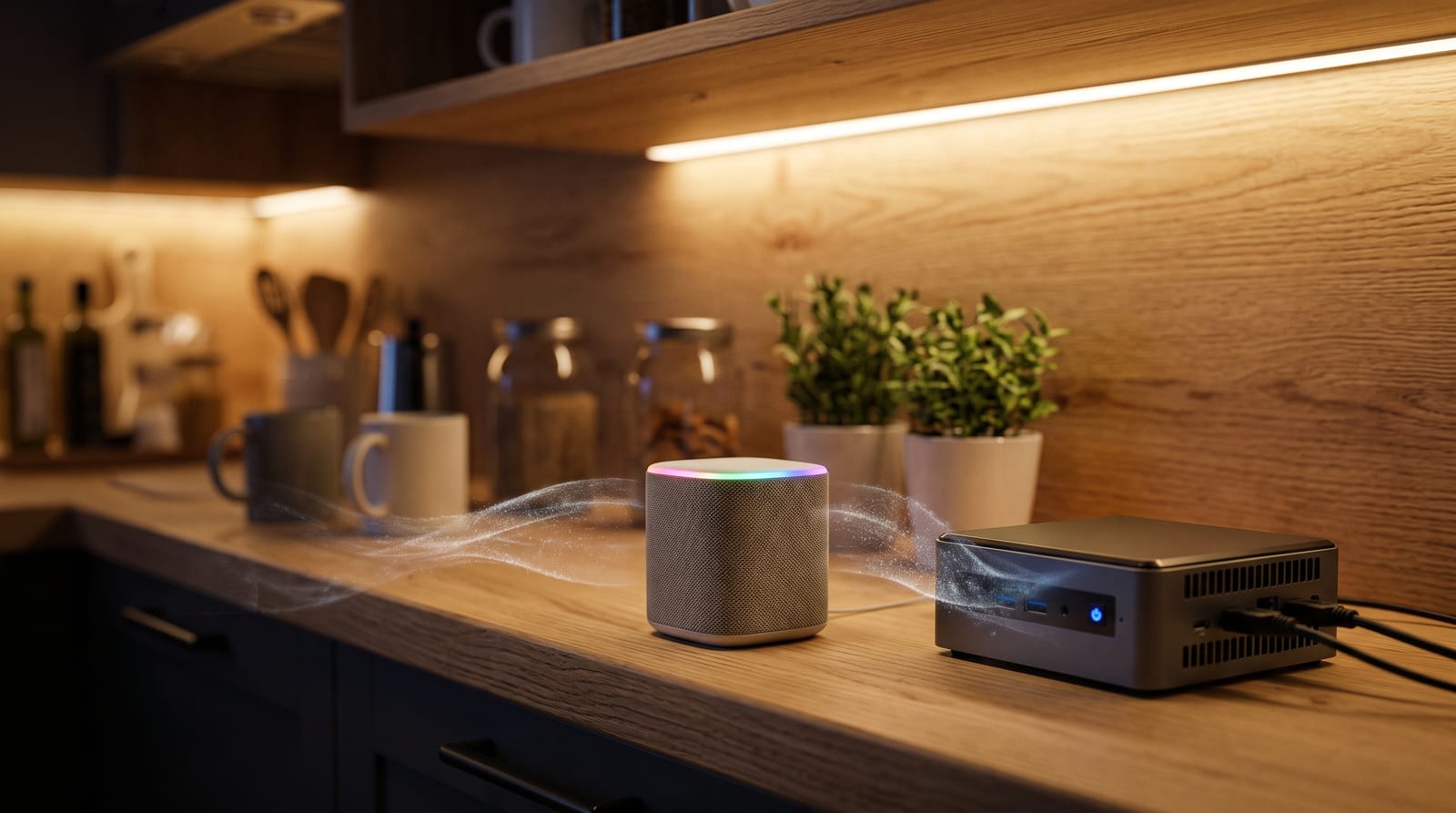
Yes, the Home Assistant Voice Preview Edition can run a completely local voice assistant. The wake word runs on the device, Whisper turns your speech into text on your own server, Home Assistant handles simple commands itself, an Ollama model answers everything else, and Kokoro speaks the reply in a natural voice. Nothing goes to the cloud.
This guide shows how the pieces fit, gives you Docker Compose files for speech-to-text and Kokoro, walks through the Home Assistant setup, and covers hardware sizing, realistic latency and the problems you're most likely to hit.
What the Voice Preview Edition Is (and Isn't)
The Voice Preview Edition (often shortened to Voice PE) is Home Assistant's own smart speaker, released by the Open Home Foundation in late 2024 for around $60–70 depending on region. It's the hardware answer to "I want an Alexa, but private."
| Part | What it does |
|---|---|
| ESP32-S3 (16 MB flash, 8 MB PSRAM) | Runs open-source ESPHome firmware, Wi-Fi, and on-device wake word detection |
| XMOS XU316 audio processor | Echo cancellation, noise suppression and auto gain, so it hears you over music |
| Dual microphones | Far-field voice pickup |
| Speaker + 3.5 mm output | Spoken replies; plug in a better speaker for music |
| LED ring, rotary dial, button | Status, volume, and a tap to start or stop |
| Hardware mute switch | Physically cuts power to the microphones |
| Grove port | Add sensors if you like to tinker |
What it isn't: a self-contained assistant. Apart from the wake word, the Voice PE streams your audio to Home Assistant, and your server does all the heavy lifting. That's great news, because it means the quality of your assistant depends on what you run on the server, and you can upgrade that at any time.
"Preview" refers to the voice software maturing quickly, not to unfinished hardware. Firmware updates arrive through ESPHome like any other device.
How the Local Assist Pipeline Fits Together
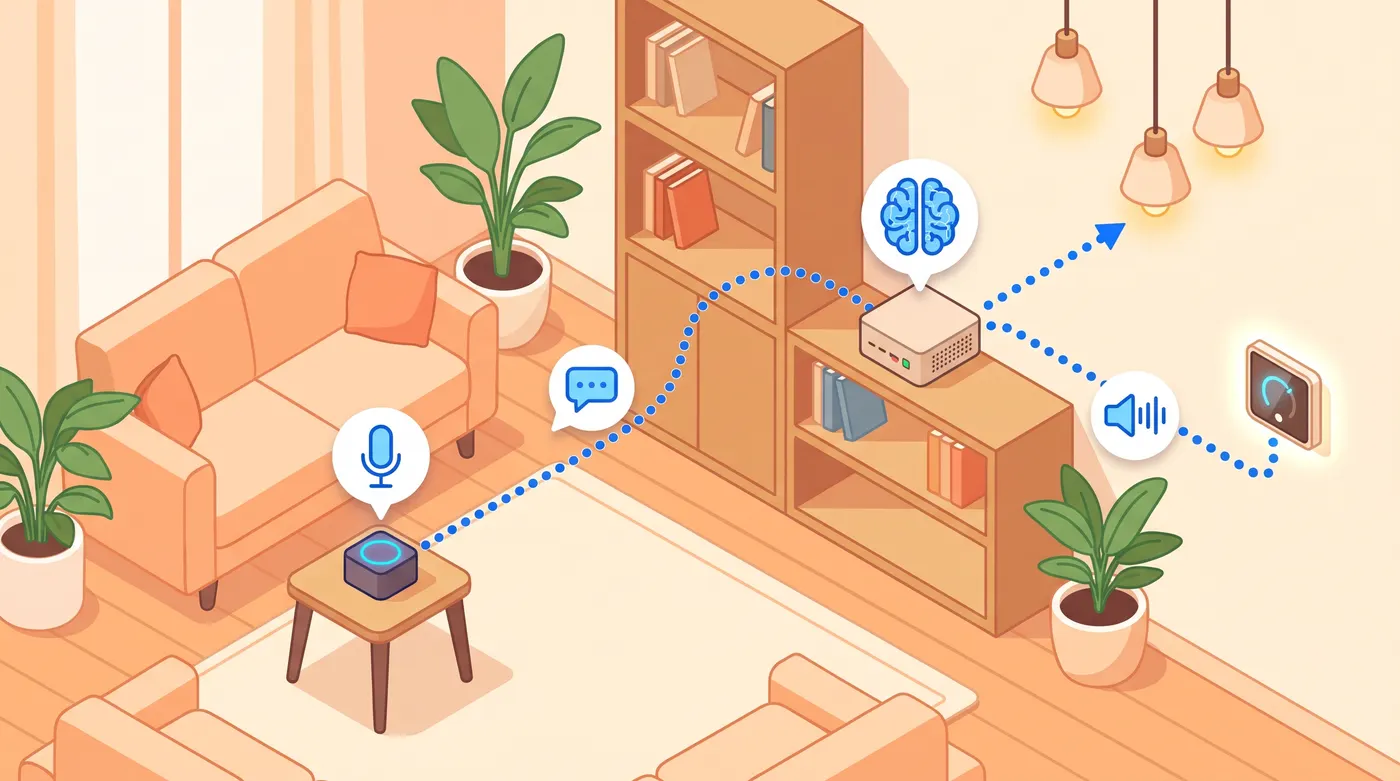
In Home Assistant, a voice assistant is an Assist pipeline made of swappable stages:
"Okay Nabu, turn off the kitchen lights"
        │
[Voice PE] wake word detected on-device (microWakeWord)
        │  audio streamed over Wi-Fi
        ▼
[Speech-to-text]   Whisper / faster-whisper or Speech-to-Phrase  (Wyoming)
        │  "turn off the kitchen lights"
        ▼
[Conversation agent]
   1. Home Assistant's built-in intents  (instant, handles simple commands)
   2. Ollama LLM fallback                 (everything else)
        │  "Kitchen lights are off."
        ▼
[Text-to-speech]   Piper or Kokoro  (Wyoming)
        │  audio
        ▼
[Voice PE speaker]
The glue is Wyoming, a small protocol Home Assistant uses to talk to speech services. Anything that speaks Wyoming can run on a different machine, such as your GPU box, while Home Assistant itself stays on a Raspberry Pi, HA Green or mini PC.
| Stage | Fast and light | Smarter / nicer |
|---|---|---|
| Wake word | On-device (Okay Nabu, Hey Jarvis, Hey Mycroft) | Same; there's no need to change it |
| Speech-to-text | Speech-to-Phrase: fixed commands only, very fast on a Pi | Whisper (faster-whisper): understands anything you say |
| Conversation | Built-in intents | Ollama for open questions and fuzzy commands |
| Text-to-speech | Piper: tiny and fast on CPU | Kokoro: much more natural, best with a GPU |
Hardware Sizing: What Runs Where
Home Assistant itself barely needs any power. The speech models and the LLM do. Here's how typical setups behave:
| Your hardware | Speech-to-text | LLM | Text-to-speech | Verdict |
|---|---|---|---|---|
| HA Green / Raspberry Pi 4 or 5 | Speech-to-Phrase | None (built-in intents only) | Piper | Fast and reliable, but fixed commands only |
| N100/N150 mini PC, 16 GB | Whisper base or small (int8) | 3–4B model on CPU, as a rare fallback | Piper (Kokoro works but is slower) | Works; LLM answers can take a long time |
| GPU box, 8–12 GB VRAM | faster-whisper on GPU | Qwen3.5 9B (Q4) | Kokoro on GPU | The sweet spot for most homes |
| 16–24 GB GPU or 24–32 GB Mac | faster-whisper | gpt-oss-20b or Qwen3.6 35B-A3B | Kokoro | Smarter conversation, still snappy |
A 12 GB card comfortably fits Qwen3.5 9B at Q4 with an 8K context (about 7–8 GB), a GPU Whisper model and Kokoro together. On 8 GB it gets tight, so run Whisper and Kokoro on the CPU and give the GPU to the LLM.
On a CPU-only box, the slow part isn't writing the answer. It's the LLM reading the prompt, which includes every entity you've exposed. Our Ollama on N100 test shows what small CPUs can manage. For model choice by memory size, see the best local AI models for low VRAM and RAM.
Step 1: Run Whisper and Kokoro With Docker Compose
If you run Home Assistant OS on capable hardware, the official Whisper, Piper and Speech-to-Phrase add-ons are the easiest route. For everything else, including running Kokoro, put the speech services on your Docker host.
Speech-to-text: Whisper on CPU
The rhasspy/wyoming-whisper image wraps faster-whisper in a Wyoming server:
services:
  whisper:
    image: rhasspy/wyoming-whisper:latest
    container_name: wyoming-whisper
    command: --model small-int8 --language en
    volumes:
      - ./whisper-data:/data
    ports:
      - 10300:10300
    restart: unless-stopped
small-int8 is a good balance on a modern CPU. Drop to base-int8 on an N100 if it feels slow, or move up if it mishears you. Setting --language explicitly avoids misdetections on short commands.
Speech-to-text: faster-whisper on an NVIDIA GPU
With a GPU you can afford a much bigger, more accurate model. The LinuxServer.io image has a GPU tag:
services:
  faster-whisper:
    image: lscr.io/linuxserver/faster-whisper:gpu
    container_name: faster-whisper
    environment:
      - PUID=1000
      - PGID=1000
      - TZ=Etc/UTC
      - WHISPER_MODEL=turbo        # or small-int8 / medium-int8 on smaller GPUs
      - WHISPER_LANG=en
    volumes:
      - ./faster-whisper:/config
    ports:
      - 10300:10300
    restart: unless-stopped
    deploy:
      resources:
        reservations:
          devices:
            - driver: nvidia
              count: all
              capabilities: [gpu]
Text-to-speech: Kokoro behind a Wyoming bridge
We covered Kokoro in depth in our Kokoro TTS setup guide, so here's just the part that's new. Kokoro-FastAPI speaks the OpenAI TTS API, not Wyoming, so Home Assistant can't use it directly. The fix is a small proxy, wyoming_openai, that translates between the two:
services:
  kokoro:
    image: ghcr.io/remsky/kokoro-fastapi-gpu:latest   # or kokoro-fastapi-cpu
    container_name: kokoro
    ports:
      - 8880:8880
    restart: unless-stopped
    # add the same nvidia "deploy" block as above for the GPU image

  wyoming-kokoro:
    image: ghcr.io/roryeckel/wyoming_openai:latest
    container_name: wyoming-kokoro
    ports:
      - 10210:10300            # Wyoming port Home Assistant will connect to
    environment:
      WYOMING_URI: tcp://0.0.0.0:10300
      TTS_OPENAI_URL: http://kokoro:8880/v1
      TTS_MODELS: kokoro
      TTS_STREAMING_MODELS: kokoro   # speak sentence by sentence
      TTS_VOICES: af_heart           # optional; remove to list every voice
    depends_on:
      - kokoro
    restart: unless-stopped
The alternative is an OpenAI-compatible TTS custom integration from HACS, pointed at http://YOUR-SERVER-IP:8880/v1. That works too, but the Wyoming route uses only official Home Assistant integrations, and it's easy to reuse for other OpenAI-compatible speech servers later.
Optional: Ollama in the same stack
If Ollama isn't running yet, add it to the GPU host. OLLAMA_KEEP_ALIVE=-1 keeps the model in memory, so your first command of the morning isn't a slow cold start:
services:
  ollama:
    image: ollama/ollama:latest
    container_name: ollama
    ports:
      - 11434:11434
    volumes:
      - ./ollama:/root/.ollama
    environment:
      - OLLAMA_KEEP_ALIVE=-1
    restart: unless-stopped
    deploy:
      resources:
        reservations:
          devices:
            - driver: nvidia
              count: all
              capabilities: [gpu]
Then pull a model with tool support: docker exec -it ollama ollama pull qwen3.5:9b. Wondering whether to use LM Studio instead? Home Assistant has an official Ollama integration, which is one of the reasons we recommend Ollama for servers in our Ollama vs LM Studio comparison.
Step 2: Connect Everything in Home Assistant
Add the Wyoming services
- Go to Settings → Devices & services → Add integration → Wyoming Protocol.
- Enter your Docker host's IP and port 10300 for Whisper.
- Repeat with port 10210 for the Kokoro bridge.
Each appears as a new speech-to-text or text-to-speech provider.
Add the Ollama integration
- Settings → Devices & services → Add integration → Ollama.
- URL:
http://YOUR-SERVER-IP:11434. - Add a conversation agent, choose your model (for example
qwen3.5:9b), and enable control of Home Assistant (the Assist API). Without this, the model can chat but can't touch your devices. - Set the context window to at least 8K, and higher if you expose a lot of entities.
- Paste in short instructions so replies suit a speaker rather than a screen:
You are a voice assistant for our home. Answer in one or two short sentences.
Never use lists, markdown or emoji, because your reply is spoken aloud.
When you control a device, confirm it in a few words.
The exact option names move around a little between Home Assistant releases, but these settings have been there in some form for a long time.
Build the Assist pipeline
Go to Settings → Voice assistants → Add assistant:
| Setting | Value |
|---|---|
| Name | Local Ollama |
| Conversation agent | Your Ollama agent |
| Prefer handling commands locally | On |
| Speech-to-text | faster-whisper (Wyoming) |
| Text-to-speech | Kokoro bridge (Wyoming), voice af_heart |
"Prefer handling commands locally" is the most important switch on this page. With it on, Home Assistant first tries its own built-in intent matching. "Turn off the kitchen lights", "set the thermostat to 21" and timers are handled almost instantly without touching the LLM. Only requests it doesn't understand, such as "it's a bit dark in here" or "do I need a jacket today?", go to Ollama. You get the speed of a classic assistant with the flexibility of an LLM.
Assign it to the Voice PE
Open the Voice PE's device page and set its Assistant to your new pipeline. On the same page you can pick the wake word and adjust settings such as wake word sensitivity in recent firmware.
Test the text path first. Open the Assist dialog in Home Assistant (the chat icon) and type commands. If typed commands work, any remaining problems are in speech-to-text or text-to-speech, which narrows things down fast.
Step 3: Expose Entities (Carefully)
The LLM can only control what you expose: Settings → Voice assistants → Expose.
It's tempting to expose everything. Don't. Every exposed entity is described in the prompt sent to the model on every request, so a long list makes responses slower and the model more easily confused.
- Expose only what you'd actually say out loud: lights, climate, covers, locks, media players, a few key sensors.
- Add aliases for how your family talks: "big light", "Lily's lamp", "the heater".
- Assign the Voice PE to an area, so "turn off the lights" applies to the room you're in.
- Name things clearly. "Kitchen ceiling" beats "Switch 3 L2".
Presence data makes this smarter still. An mmWave presence sensor lets automations know which rooms are occupied, and if you're still choosing devices, our Matter protocol guide explains what works locally.
Choosing the LLM
The model must support tool calling, which is how it controls devices. In the Ollama library, look for the tools tag.
- Qwen3.5 9B: the best default for an 8–12 GB GPU. Good at tool calls and short answers.
- gpt-oss-20b: smarter for questions and reasoning on a 16 GB card. Set reasoning effort low, or answers take longer.
- Qwen3.6 35B-A3B: excellent on a 24 GB card or a 32 GB Mac, and fast thanks to its MoE design.
- Under 4B parameters: fine as a chat fallback, but often unreliable at controlling devices.
Two things matter more than the model choice: turn off "thinking" for voice where your model allows it (nobody wants to wait while it reasons about a light switch), and keep the model loaded with keep-alive set to -1. If you want to go deeper on model sizing and GPUs, the same tiers apply as in our best local LLM for coding guide.
Latency: What to Expect
These are typical ranges reported for each stage, not lab measurements. Use the Debug view under Settings → Voice assistants to see exactly how long each stage takes on your hardware.
| Stage | Typical time |
|---|---|
| Wake word (on the Voice PE) | Instant |
| Speech-to-Phrase (Pi / N100) | Under 1 second |
| Whisper small-int8 on an N100 CPU | Roughly 1–3 seconds for a short command |
| faster-whisper on a GPU | Well under 1 second |
| Built-in intent ("prefer local") | Near-instant |
| Ollama 9B on a 12 GB GPU | Roughly 1–3 seconds |
| Ollama 3–4B on an N100 CPU | Often 15 seconds to over a minute |
| Piper on CPU | Well under 1 second |
| Kokoro on GPU | About 0.3 seconds to first audio |
| Kokoro on a small CPU | A few seconds for longer replies |
So with a GPU, a simple command lands in about 1–2 seconds end to end, and an LLM answer in about 2–5 seconds. That's comparable to commercial assistants. CPU-only LLM setups work, but use them as a rare fallback rather than the main path.
Troubleshooting
The Voice PE doesn't respond to the wake word Check the mute switch (the LED ring shows red when muted) and which wake word is selected. Move it away from TVs and speakers, and try a higher sensitivity setting.
"Sorry, I couldn't understand that" Speech-to-text heard something odd. Check the transcript in the Debug view. Set the language explicitly, try a bigger Whisper model, and add aliases. Speech-to-Phrase only knows names of exposed entities and supported sentence patterns.
The LLM says it did something, but nothing happened Either control of Home Assistant isn't enabled in the Ollama agent, the entity isn't exposed, or the model doesn't support tool calling. Switch to a model with the tools tag.
The first command after a while is very slow
The model was unloaded from memory. Set keep-alive to -1 in the integration or OLLAMA_KEEP_ALIVE=-1 on the server.
Home Assistant can't connect to Ollama
Ollama listens only on localhost by default. Set OLLAMA_HOST=0.0.0.0:11434 on a native install (Docker publishes the port for you), open port 11434 in the firewall, and use the server's IP address rather than localhost.
Kokoro is silent or the Wyoming connection fails
Test Kokoro directly first with curl http://YOUR-SERVER-IP:8880/v1/audio/voices. Then check the bridge's logs with docker logs wyoming-kokoro. The proxy expects WAV audio back, and TTS_OPENAI_URL must include /v1.
Answers are long and rambling Tighten the instructions ("one or two short sentences"), lower reasoning effort on thinking models, and reduce the number of exposed entities.
The built-in speaker is too quiet for music That's expected from a small speaker. Use the 3.5 mm output into powered speakers.
FAQ
Does the Home Assistant Voice Preview Edition work without the cloud?
Yes. With a local pipeline (Whisper or Speech-to-Phrase, built-in intents or Ollama, and Piper or Kokoro), nothing leaves your network. Home Assistant Cloud is optional and only one of the possible pipelines.
Can I use Kokoro instead of Piper in Home Assistant?
Yes, either through a Wyoming bridge such as wyoming_openai (as shown above) or through an OpenAI-compatible TTS custom integration from HACS. Kokoro sounds much more natural, while Piper is faster on weak CPUs.
What is the best local LLM for Home Assistant?
For most people, Qwen3.5 9B on an 8–12 GB GPU. With 16 GB or more, gpt-oss-20b or Qwen3.6 35B-A3B are smarter. Whatever you choose, it must support tool calling, and you should turn on "Prefer handling commands locally" so simple commands skip the LLM.
Do I need a GPU for a local voice assistant?
Not for basic commands. A Raspberry Pi or N100 running Speech-to-Phrase and Piper handles lights, timers and climate quickly. You need a GPU (or an Apple Silicon Mac) if you want an LLM that answers open questions in a few seconds.
Should I use Speech-to-Phrase or Whisper?
Use Speech-to-Phrase on low-power hardware if you only need device commands. It's very fast but only understands a fixed set of sentence patterns and a handful of languages. Use Whisper if you want to talk naturally or ask the LLM open questions.
Can I change the Voice PE's wake word?
Yes. Choose between the built-in on-device wake words on the device's page in Home Assistant. Custom wake words are possible with community microWakeWord models, but they take some tinkering.
The Bottom Line
The Home Assistant Voice Preview Edition is the easiest way to get a private voice assistant that actually works. Put Whisper and Kokoro on your Docker host, add Ollama with a tool-calling model, and turn on Prefer handling commands locally. Simple commands stay instant, the LLM handles everything else, and every word stays inside your home. Start with Piper and the built-in intents if you're on modest hardware, then add the LLM and Kokoro when you have a GPU to spare.